

Remove iCloud Before Selling and Avoid 4 Mix-Ups
You’re preparing an iPhone for sale when several similar options appear in the Apple Account settings. You can sign out, turn off Find My, erase the device, or remove it from your account. It isn’t immediately clear which action deletes local data and which one controls Activation Lock.
The goal is to remove iCloud before selling without deleting photos or documents you meant to keep. You also need to erase the information stored on the phone and confirm that the next owner won’t be asked for your Apple Account password.
Apple now uses “Apple Account” in place of “Apple ID,” although many people and older support pages still use the previous name.
This article explains the four actions sellers commonly confuse. You’ll see how to remove the account while the iPhone is with you, what to do after it has been shipped, and how to confirm that the removal worked.
What Does Removing iCloud From iPhone Mean?
To remove iCloud before selling, disconnect the iPhone from the owner’s Apple Account so the next owner can activate and use it.
The account connects the phone to iCloud photos, backups, contacts, Find My, Apple Pay, verification codes, and other Apple services. Find My also enables Activation Lock, which can require the owner’s credentials before someone else can set up the device.
Removing the account doesn’t delete the Apple Account itself. It also doesn’t erase everything stored in iCloud. Your backed-up photos, contacts, documents, messages, and other synced information can remain available on your other connected devices.
If you’re trying to remove your Apple ID before selling, signing out is only one part of the process. You also need to erase the local information and check that the phone no longer appears as a connected device.
Four iCloud Mix-Ups That Block Sales
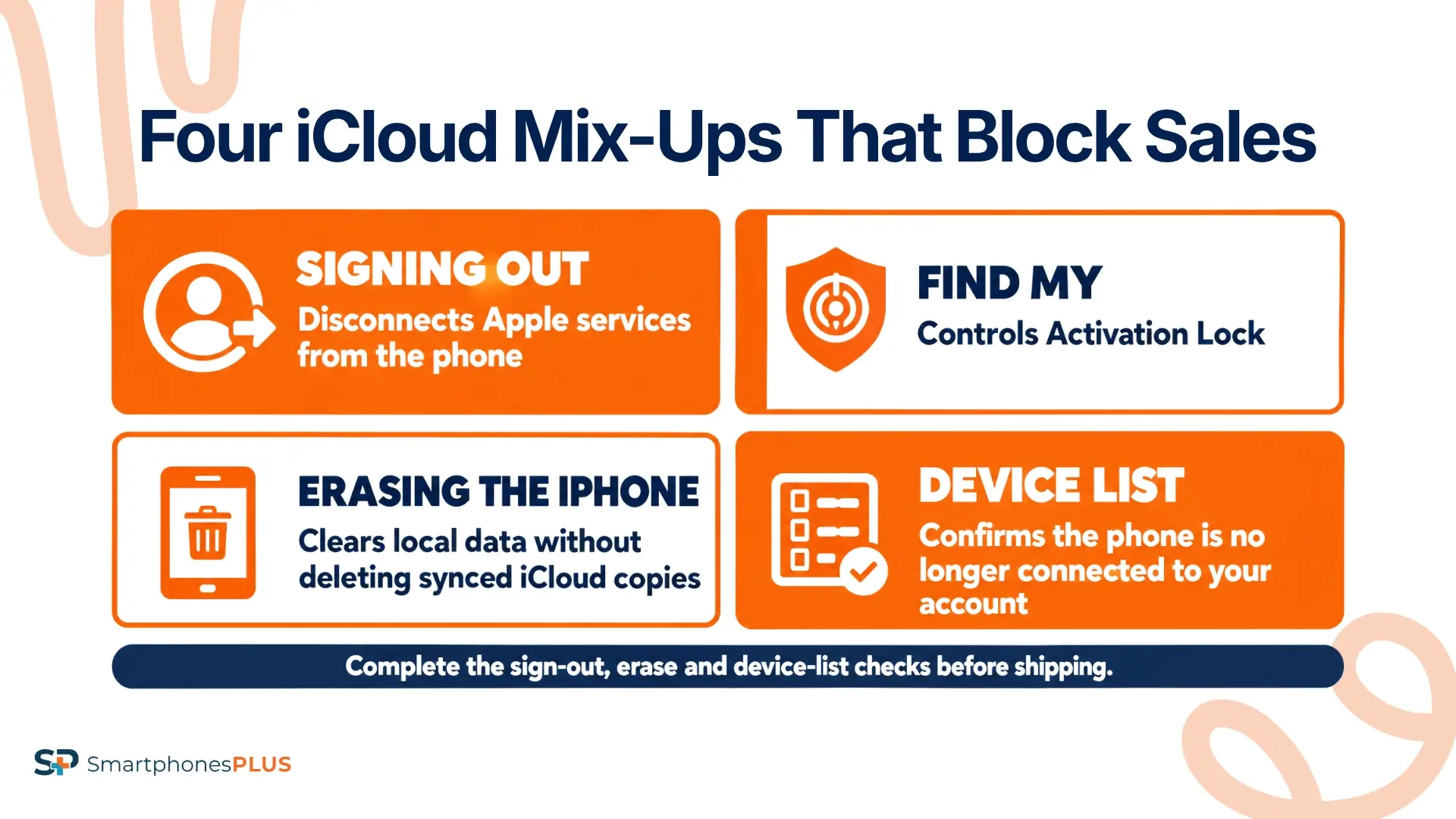
These four actions are connected, but each one does something different. Understanding the difference makes the removal process much easier to follow.
| Common mix-up | What the actions do | What the seller needs |
| Signing out and turning off Find My | Signing out disconnects Apple services, while Find My controls Activation Lock | Follow Apple’s sign-out process and enter the Apple Account password |
| Deleting files and erasing the iPhone | Manual deletion can remove synced content from iCloud, while Erase All Content and Settings clears the device | Back up first, then use Apple’s erase option |
| Removing iCloud in person or remotely | The process changes once the phone is no longer available | Use Settings when the phone is present or Find Devices when it is gone |
| Seeing Hello and checking the device list | The Hello screen confirms the erase, while the device list shows the Apple Account connection | Check both before considering the handoff complete |
What Should You Do Before Signing Out?
Before you remove iCloud before selling, create a current backup and check when it last finished. If your replacement phone is available, confirm that your important photos, messages, contacts, passwords, and files transferred correctly.
Finish this check before you sign out of iCloud. Don’t manually delete synced items because that could also remove them from iCloud and your other devices.
The Apple iPhone backup instructions explain the available methods. Our guide to what happens to phone data provides more context about preparing a device for trade-in.
Unpair any connected Apple Watch before removing the account. Check for an active AppleCare plan, transfer your phone number and eSIM, and add another trusted phone number if your current number is changing.
You can use the separate iPhone factory-reset guide for the complete preparation and erase process.
How to Remove iCloud Before Selling
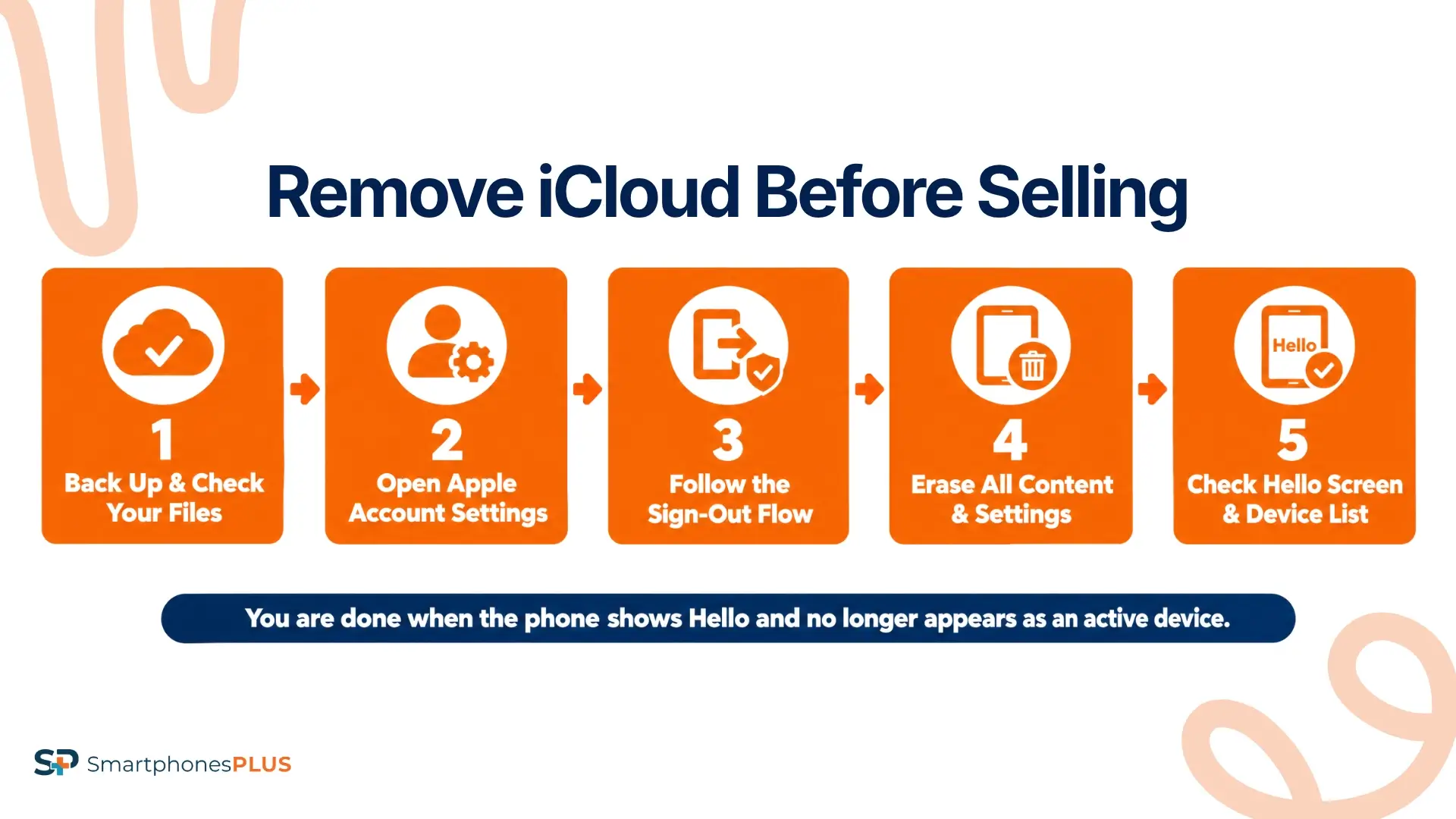
Complete these steps while the iPhone is connected to the internet. Have the device passcode and Apple Account password ready before you begin.
1. Open Your Apple Account Settings
Open Settings and tap the owner’s name at the top of the screen. This area controls iCloud, Find My, connected devices, Apple services, and other account information.
Confirm that the displayed name and email belong to you. If another person’s account appears, that person will need to remove the connection with their own credentials.
Connect the iPhone to a stable Wi-Fi or cellular network. The phone may need internet access to verify the password, sign out, turn off Find My, and update the device list.
2. Follow the Current Sign-Out Flow
To sign out of iCloud on iOS 26 or later, scroll down and tap Sign Out. Apple may show “Erase This iPhone” or “Sign Out But Don’t Erase.”
Erase This iPhone can continue directly into the device-removal process. Follow the prompts and enter the requested passcode or Apple Account password.
Sign Out But Don’t Erase disconnects the account but leaves local information on the phone. This may be useful if you still need the device for a short time, but you’ll need to erase it before selling.
On iOS 18 or earlier, go to Settings, tap your name, and select Sign Out. Enter the Apple Account password and tap Turn Off.
Apple’s selling and trade-in instructions provide the current sign-out paths. Menu labels may change in later iOS versions.
3. Erase All Content and Settings
If the iPhone didn’t erase during the iOS 26 sign-out flow, open Settings, General, and Transfer or Reset iPhone. Tap Erase All Content and Settings.
Review the erase summary and confirm that your backup is finished. Enter the device passcode, Screen Time passcode, or Apple Account password when requested.
An iPhone with eSIM may ask if you want to erase the device and eSIM profile. If you’re selling the phone, choose the option that erases both, once your cellular service has been transferred or handled with the carrier.
Erase All Content and Settings clears the information stored locally on the phone without deleting the copies synced to iCloud. Use this option instead of erasing photos, contacts, or other items one at a time.
4. Check the Hello Screen
The iPhone should restart and display the Hello setup screen after the erase finishes. Don’t continue through setup or sign back into an Apple Account.
The Hello screen confirms that the phone’s local content has been erased and that it has returned to the new-device setup process.
Take a dated photo of the Hello screen and the phone’s physical condition before packaging it. The photo provides a record that the reset finished before the handoff.
Seeing Hello is a good sign, but it isn’t the final account check. Review the Apple Account device list before considering the process complete.
5. Check the Apple Account Device List
Open Settings and tap your name on another Apple device, then scroll down to the list of connected devices. You can also sign in at account.apple.com and select Devices.
Find the iPhone you’re selling and review its information. If it remains connected, select the device and choose Remove from Account.
Removing it stops the phone from accessing iCloud, Find My, and other Apple services. It also prevents the device from displaying verification codes for two-factor authentication.
Apple’s device list instructions explain how to review and remove connected devices from an iPhone, iPad, Mac, Windows PC, or web browser.
You’re done once the iPhone displays Hello and no longer appears as an active device on your account.
What If You No Longer Have the iPhone?
If you need to remove iCloud before selling but the phone has already been shipped or handed over, complete the process remotely.
Go to Find Devices on iCloud.com, select the iPhone, and choose Erase This Device. If the phone is offline, the request will begin when it reconnects to the internet.
Activation Lock remains active during the remote erase. Once the erase finishes, return to Find Devices and select Remove This Device. That final step removes Activation Lock so someone else can activate the iPhone.
Check the Apple Account device list afterward. If the iPhone still appears as a signed-in device, select it and choose Remove from Account.
Remove any Apple Pay cards connected to the phone and deregister iMessage if your number has moved to Android. Changing your Apple Account password can limit future account access, but it won’t erase files already stored on the old phone.
If you forgot to remove iCloud before selling, complete these steps as soon as possible. Don’t wait for the buyer to run into Activation Lock during setup.
What If Activation Lock Still Appears?
Activation Lock may remain if Find My wasn’t removed correctly or the iPhone wasn’t erased through the expected process.
The previous owner should sign in with the Apple Account that was connected to the phone. Complete the removal through Find Devices or the Apple Account device list.
Use Apple’s password recovery page if you’ve forgotten the password. Account recovery may take time, so begin before shipping the phone when possible.
Don’t use a third-party service that claims it can bypass Activation Lock. These services can’t replace the legitimate owner’s account credentials or valid proof of purchase.
If you bought an Activation-locked iPhone, ask the previous owner to remove it from their account remotely. If that person can’t be reached, Apple may request valid proof of purchase before providing help.
An iCloud lock trade-in can’t move forward until the account connection is removed. The buyer needs to be able to activate and test the phone.
Why Is an iCloud Lock Trade-In Blocked?
SmartphonesPLUS can’t assign a cash value to an iPhone with an active iCloud account. The account must be removed before the phone can be activated, tested, refurbished, and resold.
The prices below apply to the listed unlocked iPhones in Good physical condition. They aren’t estimates for iCloud-locked devices.
| iPhone configuration | Live offer | Product details |
| iPhone 16 Pro Max, 256GB, Unlocked, Good | $524 | Product details |
| iPhone 14, 128GB, Unlocked, Good | $152 | Product details |
| iPhone 13, 128GB, Unlocked, Good | $130 | Product details |
| iPhone 11, 128GB, Unlocked, Good | $80 | Product details |
These live offers can change with the model, storage, carrier, condition, and current demand. Once the Apple Account is removed, the phone can receive a normal quote based on those details. Removing the lock doesn’t guarantee a certain price or condition grade.
You can compare more current iPhone trade-in values or visit the SmartphonesPLUS iPhone selling page once the account has been removed.
Remove the Account Before Shipping
Before shipping, confirm that the iPhone displays Hello and no longer appears as an active device in your Apple Account. Those two checks show that the local information is gone and the account connection has been removed.
Apple may change its Settings labels in later iOS versions, so check the linked instructions if your screen looks different.
Once you remove iCloud before selling and complete both checks, you can review the phone’s current cash offer through SmartphonesPLUS.
Frequently Asked Questions
Can you remove iCloud without the password?
The Apple Account password may be required to sign out, turn off Find My, and remove Activation Lock. Use Apple’s password recovery process if you’ve forgotten it. Avoid tools that promise to unlock the account without it. They can’t substitute for verified ownership.
Does signing out delete iCloud photos?
Signing out disconnects the device, but your Apple Account and its cloud storage stay intact. Manually deleting synced photos while signed into iCloud can remove them from iCloud and other connected devices. Confirm the backup and use Apple’s erase process instead of deleting files individually.
Does factory reset remove iCloud lock?
Erase All Content and Settings can turn off Find My and Activation Lock when the legitimate owner provides the required credentials. Restoring or erasing the phone through another method may still leave account verification active during setup.
Can SmartphonesPLUS buy an iCloud-locked iPhone?
SmartphonesPLUS can’t provide a cash value until the active iCloud or Apple Account connection is removed. The phone must be available for activation, testing, refurbishment, and resale. Remove the account before requesting or completing the sale.
Can you remove iCloud after shipping?
Yes. Open Find Devices on iCloud.com, select the iPhone, and erase it remotely. Once the erase finishes, select Remove This Device to remove Activation Lock. If the phone is offline, the erase will begin when it reconnects. Check the general Apple Account device list afterward.


