

Factory Reset iPhone Before Selling in 7 Safe Steps
Your trade-in label is ready, some of your photos are backed up, and the iPhone is displaying a warning that everything will be erased. That warning can make you pause and wonder if you’ve missed a step.
You want your personal information gone before the phone reaches its next owner. You don’t want to lose the only copy of a photo, delete information from iCloud, or leave the iPhone connected to your Apple Account.
The safest way to factory reset an iPhone before selling is to handle the backup, account connections, paired devices, and phone service before tapping the final erase button. The order keeps your files protected and prevents Activation Lock from delaying the sale.
This article explains what a reset removes, what you need to do first, the current seven-step process for iOS 26, and how to confirm that the iPhone is ready for its next owner.
What Does an iPhone Factory Reset Erase?
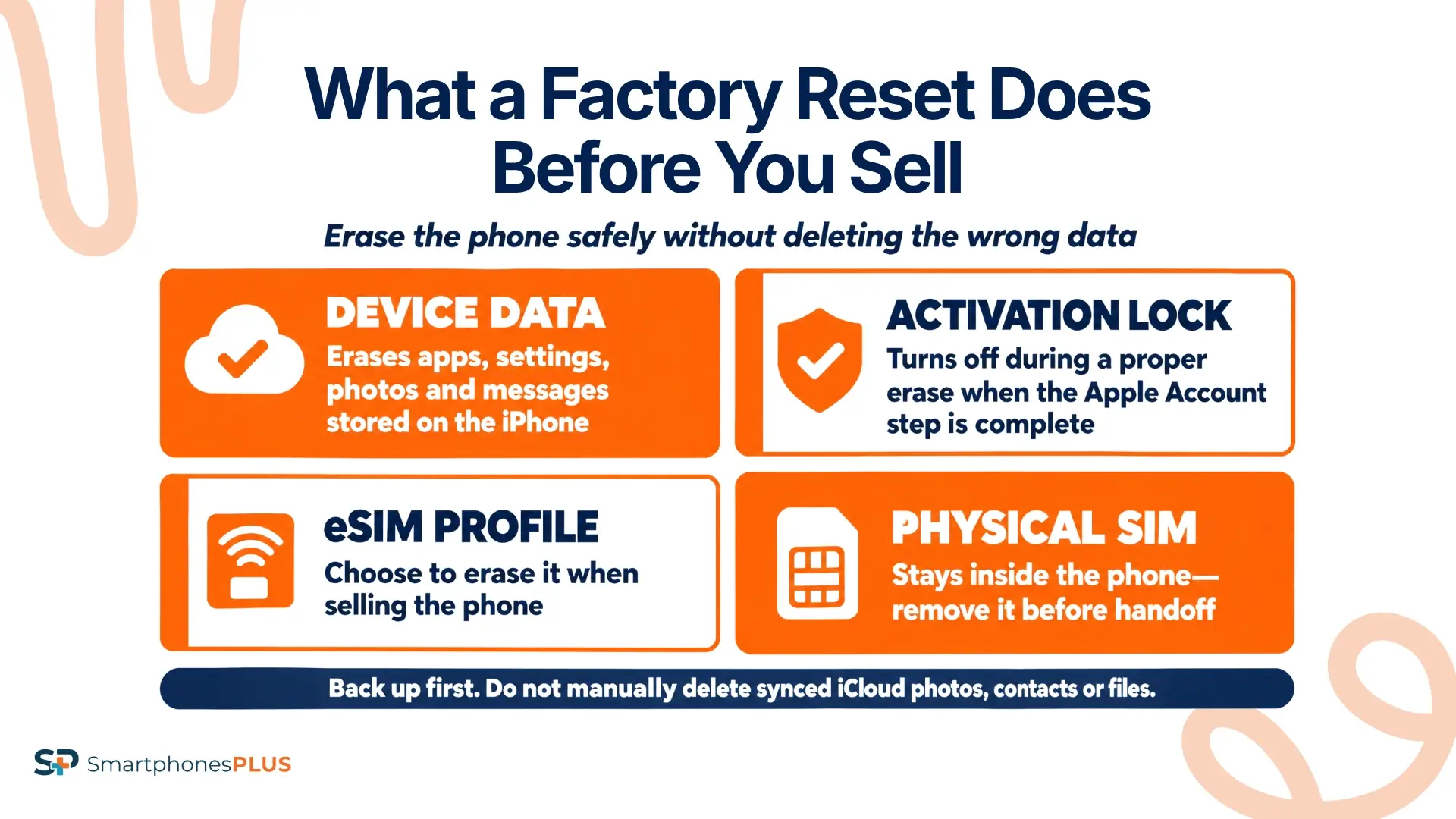
A factory reset erases the personal data, apps, settings, payment cards, and accounts stored on the iPhone, returning it to the setup screen for a new owner.
To erase iPhone data safely, use the built-in reset instead of deleting synced items individually. Manual deletion could also remove photos, contacts, or files from iCloud and your other devices.
When you factory reset an iPhone before selling through the proper process, Find My and Activation Lock turn off as the device is erased. You may need your Apple Account password to complete that step.
| Item | What the reset does | Extra action before selling |
| Photos, messages, apps, and settings | Erases the copies stored on the iPhone | Confirm that the wanted information is backed up |
| Content stored in iCloud | Leaves the cloud copy in the Apple Account | Don’t manually delete synced items |
| Apple Pay cards and passes | Removes them from the erased iPhone | Remove them remotely if the phone is already gone |
| Find My and Activation Lock | Turns them off during a proper erase | Have the Apple Account password ready |
| eSIM profile | Provides an option to erase or keep it | Choose to erase the eSIM when selling |
| Physical SIM card | Remains inside the phone | Remove it before handing over the phone |
| Apple Watch pairing | Isn’t handled by the iPhone reset | Unpair the Watch first |
| AppleCare or cellular plan | Isn’t automatically canceled | Transfer or cancel each plan separately |
Apple’s current selling and trade-in instructions confirm that Erase All Content and Settings removes the information stored on the device without deleting the seller’s content from iCloud.
How to Factory Reset iPhone Before Selling
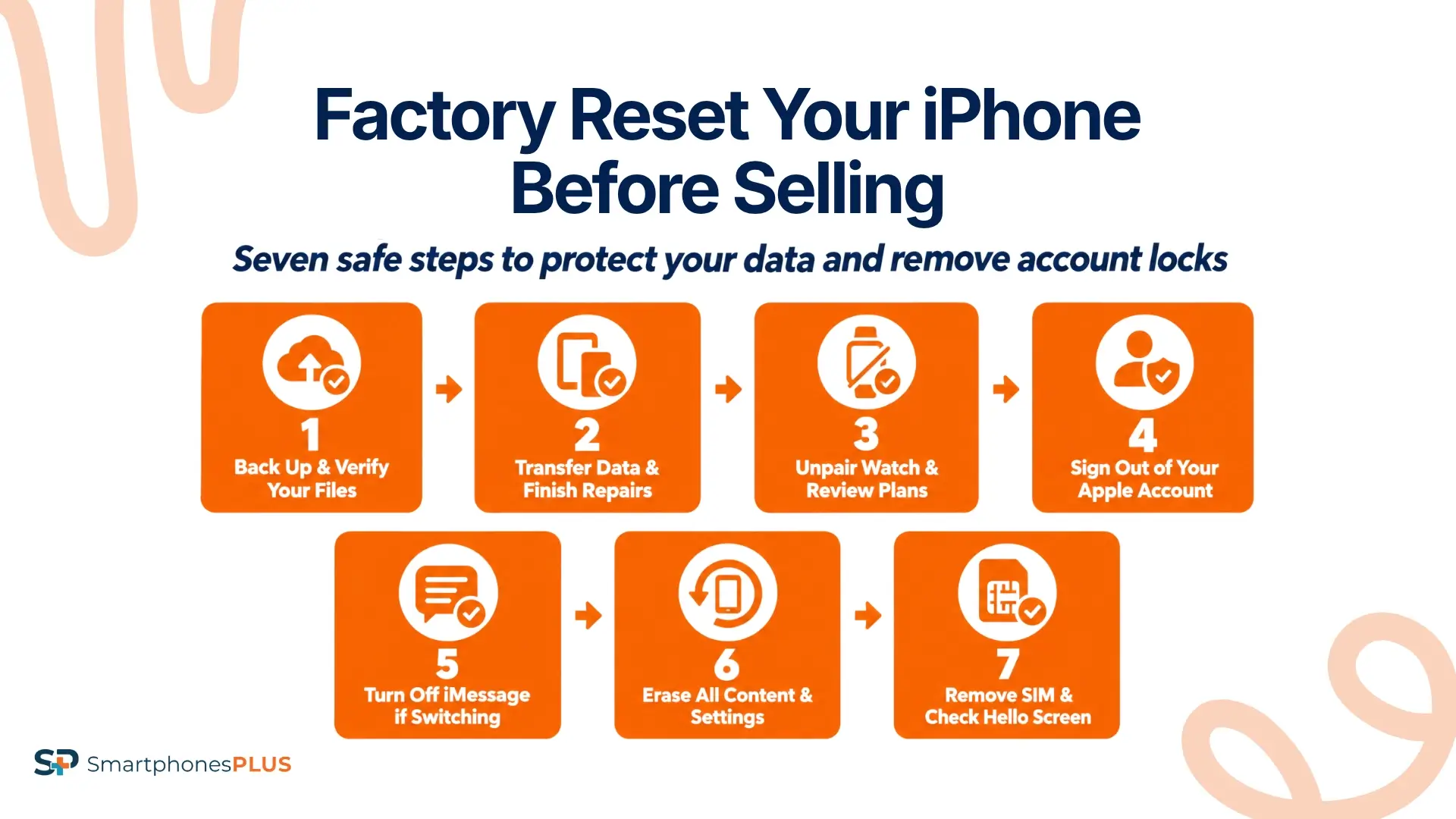
Follow these steps in order when you factory reset an iPhone before selling. They reflect Apple’s current process and show how to reset an iPhone to sell it without skipping the backup or account checks.
1. Back Up and Verify Your Files
Create an iCloud backup or an encrypted backup using a Mac or PC. An encrypted computer backup can include saved passwords, Wi-Fi settings, Health data, and call history that a standard unencrypted backup may leave out.
Wait for the backup to finish and check the date of the latest successful backup. If your replacement iPhone is available, open your important photos, contacts, messages, passwords, notes, and health information on the new device.
Apple’s current iPhone backup instructions explain the iCloud, Mac, and PC options.
Don’t manually delete synced photos, contacts, calendars, or documents while signed into iCloud. That can delete the cloud copies too.
2. Transfer Data and Finish Repairs
Quick Start can transfer information directly from your old iPhone to a new one. Keep both phones nearby, connected to power, and connected to Wi-Fi until the transfer finishes.
Open Settings, General, and About on the old phone. Look for Parts and Service History. If “Finish Repair” appears beside a replaced part, Apple says the repair process needs to be completed before the device can be traded in.
Add another trusted phone number to your Apple Account before changing your current number. This gives you another way to receive verification codes if your old number becomes unavailable during the move.
3. Unpair Your Watch and Review AppleCare
Open the Watch app while the iPhone and Apple Watch are close together. Go to My Watch, All Watches, tap the information button beside the Watch, and select Unpair Apple Watch.
Unpairing creates a backup of the Watch and removes its Activation Lock. Apple’s Watch unpairing instructions explain how to handle a cellular Watch plan during this process.
A cellular plan may need to be removed or canceled separately through the carrier. You should also contact Apple if you want to cancel AppleCare or transfer an eligible plan to the phone’s next owner. Resetting the iPhone doesn’t handle either agreement automatically.
4. Sign Out of Your Apple Account
Signing out disconnects the phone from your Apple Account, iCloud information, Find My, and Activation Lock.
On iOS 26 or later, go to Settings, tap your name, scroll down, and select Sign Out. Apple may present two choices: Erase This iPhone or Sign Out But Don’t Erase. If you choose Erase This iPhone and the process begins, continue to the final verification step after the phone restarts.
On iOS 18 or earlier, open Settings, tap your name, and select Sign Out. Enter your Apple Account password and tap Turn Off when prompted.
Check Apple’s current instructions or the SmartphonesPLUS account removal guide if you need help completing the sign-out process.
5. Deregister iMessage When Switching Phones
This step mainly applies if you’re moving from an iPhone to an Android or another non-Apple phone. Deregistering your number helps keep future texts from being routed through Apple’s messaging system.
Go to Settings, Apps, and Messages, then turn off iMessage. Return to Settings, open Apps and FaceTime, then turn off FaceTime.
Apple’s iMessage deregistration guide includes an online option if you no longer have the iPhone. Messages sent to your number may take a few hours to update across some Apple devices.
You can skip this step if your number is moving directly to another iPhone and iMessage is already working on the new device.
6. Erase All Content and Settings
Open Settings, General, and Transfer or Reset iPhone. Tap Erase All Content and Settings.
Review the erase summary and confirm that your backup has finished. The phone may ask for the device passcode, Restrictions passcode, or Apple Account password before you can tap Erase iPhone.
If the iPhone uses an eSIM, choose the option to erase both the device and the eSIM profile when selling it. Transfer your cellular service first or ask the carrier how it wants the eSIM handled.
Apple states that Erase All Content and Settings completely erases the device. One completed reset is enough before selling.
7. Remove the SIM and Check the Reset
Remove the physical SIM card after the reset if the iPhone has one. Resetting the phone doesn’t erase or remove the card.
Once the iPhone restarts at the Hello screen, don’t continue through setup or sign back into an Apple Account. That screen confirms that the reset has finished.
Check your Apple Account device list from another Apple device or account.apple.com. Remove the sold iPhone if it still appears.
Take a final dated photo of the Hello screen and the phone’s physical condition. You’ll have a record showing that the iPhone was reset before you packaged or handed it over.
What If You No Longer Have the iPhone?
If the iPhone has already been sold or shipped, the previous owner can still take steps to protect the Apple Account and remove the device remotely.
Contact the buyer and ask them to erase the phone through Settings if possible. You can also sign in to Find My on iCloud.com and remotely erase the iPhone. Once the remote erase finishes, remove the phone from your Apple Account device list.
Remove any Apple Pay cards or passes linked to the missing phone. Change your Apple Account password and turn on two-factor authentication if you’re concerned about account access.
Changing the password won’t erase personal files stored locally on the old phone. It limits the device’s future access to information in iCloud.
If you moved to Android, use Apple’s online tool to deregister iMessage. If you forgot to factory reset your iPhone before selling, follow Apple’s official remote instructions instead of trying an unofficial workaround.
Does Resetting Change Your iPhone’s Value?
A factory reset doesn’t change the iPhone’s model, storage, condition, or hardware value. The reason to wipe your iPhone before selling is to protect your information and remove account connections. SmartphonesPLUS can’t provide a cash value until the iCloud or Apple Account is removed.
The examples below show live offers for unlocked iPhones with the listed storage in Good condition. Each Product details link opens the exact configuration used for the price.
| Model | Live offer | Product details |
| iPhone 16 Pro Max, 256GB | $524 | Product details |
| iPhone 14, 128GB | $159 | Product details |
| iPhone 11, 128GB | $80 | Product details |
Offers can change based on the phone’s configuration, condition, and current demand. Completing the steps to factory reset an iPhone before selling doesn’t improve its physical grade, so describe any damage accurately when requesting a price.
Compare current iPhone trade-in values or visit the iPhone selling page once the device is ready.
Reset First, Then Check Your Offer
Back up the information you want to keep before touching the erase controls. Handle the Apple Watch, AppleCare, phone service, iMessage, Apple Account, and Activation Lock next. Erase the phone only after those pieces are in place.
Apple can change account flows and Settings labels with future iOS updates. Check the linked Apple instructions if the menu on your phone doesn’t match the path shown here.
Once you’ve followed the steps to factory reset your iPhone before selling and see the Hello screen, confirm that the device is no longer connected to your account. You can then check its current cash offer through SmartphonesPLUS without leaving personal data or an account lock behind.
Frequently Asked Questions
Do you need to erase an iPhone twice?
No. Apple states that Erase All Content and Settings completely erases the device. Repeating the reset, triggering passcode failures, using third-party software, or restoring the iPhone several times through DFU mode isn’t part of Apple’s current selling instructions.
Does resetting remove a carrier lock?
No. A factory reset removes personal data, apps, accounts, and settings, but it doesn’t unlock the iPhone from AT&T, Verizon, T-Mobile, or another carrier. Contact the carrier and follow its eligibility and unlocking process separately.
Can you reset without your Apple password?
The device passcode may be enough for some steps, but your Apple Account password can be required to turn off Find My and Activation Lock. Use Apple’s account recovery process if you’ve forgotten the password. Don’t use a service that promises to bypass the lock.
Does resetting cancel AppleCare or cellular service?
No. Erasing the iPhone doesn’t automatically cancel AppleCare, cellular service, device financing, or related subscriptions. Contact Apple or the carrier to transfer or cancel each agreement. Transfer your number and eSIM before erasing the old phone if you plan to keep them.
Can you reset an iPhone with a broken screen?
If the screen can’t be used, you may be able to erase the iPhone through Find My or restore it with a trusted computer. Remove the device from your Apple Account before selling it. Ask the buyer about its damaged-device requirements if you can’t confirm the reset.


