

Factory Reset Samsung Before Selling in 6 Easy Steps
Your Galaxy is packed, the shipping label is ready, and you’re one tap away from Delete All. Then the warning appears: your apps, accounts, settings, and personal information will be removed.
You want to erase Samsung data before the phone reaches its next owner without losing the only copy of a photo or leaving the device tied to a Google account.
The safest way to factory reset a Samsung before selling is to back up your files, remove every account, and take out the SIM and memory card before starting the reset. The type of reset matters too. Resetting all settings doesn’t remove personal data, and using the Recovery menu may trigger Google account verification.
This article explains what each reset option does, the correct six-step process, what to do if Settings can’t be used, and how to confirm that your Galaxy is ready to sell.
What Does a Samsung Factory Reset Erase?
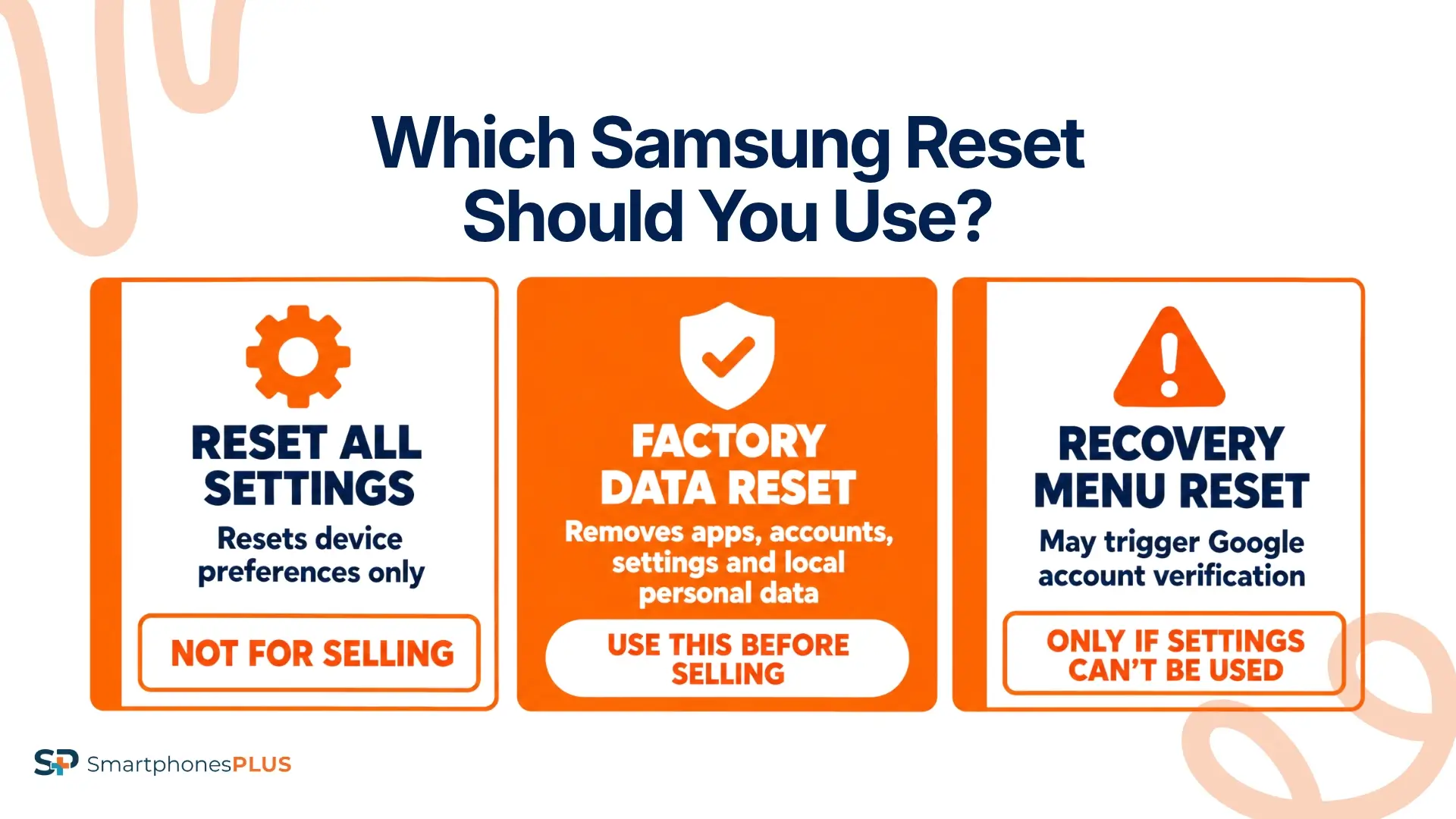
A factory reset deletes the apps, accounts, settings, and personal information stored locally on the Samsung Galaxy.
Resetting all settings isn’t the same process. It returns selected device preferences to their defaults without deleting apps, accounts, photos, messages, or other personal information. A seller needs to choose Factory data reset.
| Reset option | What it removes | Right before selling? |
| Reset all settings | Device preferences and selected settings | No |
| Factory data reset | Apps, accounts, settings, and local personal data | Yes |
| Recovery menu reset | Local data, but may trigger Google account verification | Only when Settings can’t be used |
Samsung recommends completing a factory reset through Settings when you can access the phone. A Recovery menu reset can activate Google Device Protection and require the Google account previously connected to the device.
The menus may look slightly different based on the Galaxy model, carrier, and software version. Check Samsung’s current factory reset instructions if the labels on your phone don’t match the path in this guide.
If you’re preparing to factory reset Samsung before selling, remember that the process removes local data. It doesn’t cancel cellular service, erase a removable microSD card, or unlock the phone from its carrier.
How to Factory Reset Samsung Before Selling
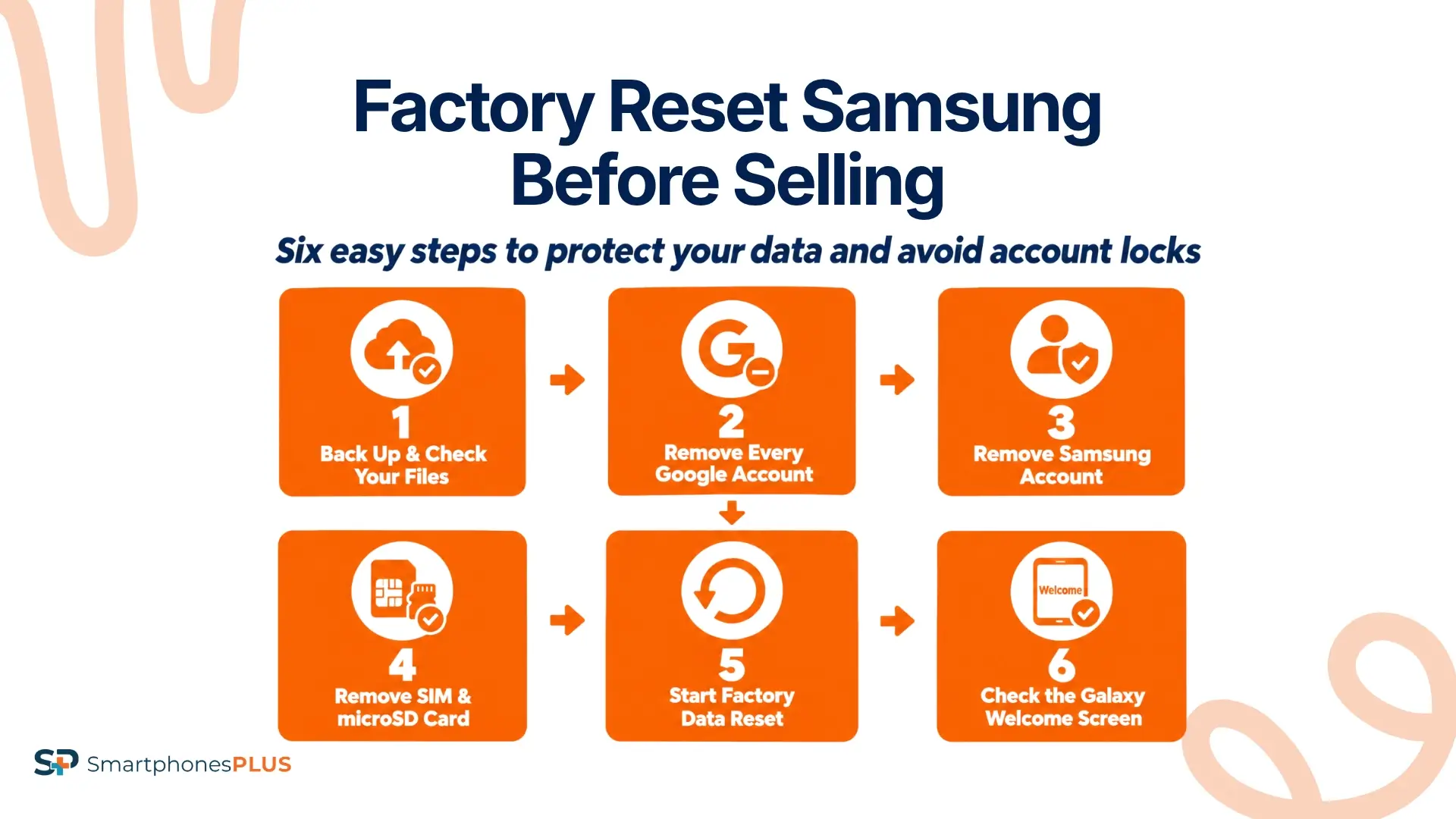
Use these six steps to reset your Galaxy to sell it without leaving a Google or Samsung account connected. Complete them in order so your files are backed up and the phone doesn’t request your account information during setup.
1. Back Up and Check Your Files
A current backup is the first thing you need before you factory reset your Samsung before selling. Samsung Cloud, Google backup, and Smart Switch can save information to another phone, computer, or supported storage device.
Samsung Cloud can back up items such as messages, call logs, contacts, settings, and home-screen information. Google backup can save supported apps, device settings, messages, and other data connected to your Google account.
Smart Switch can transfer information directly to another Galaxy or create a backup on a Windows PC, Mac, microSD card, or supported USB storage device. Samsung’s backup instructions explain what each method can save.
Wait for the backup or transfer to finish. Open the important photos, messages, contacts, documents, and other files on the new device or backup location before continuing.
Don’t erase Samsung data until you’ve confirmed that the information you want appears somewhere else.
2. Remove Every Google Account
Go to Settings, Accounts and backup, and Manage accounts. Select a Google account, tap Remove account, and confirm the choice.
Repeat this process for every Google account on the phone. Check for secondary email addresses, old accounts, work profiles, and accounts used only for apps or purchases.
Google Device Protection is an Android security feature that helps stop someone from erasing and reusing a lost or stolen phone. It can ask for the username and password of the last Google account used on the device after an unauthorized reset.
Samsung warns that a Recovery menu reset may trigger account verification. Remove every Google account before you wipe the Samsung phone data, then complete the reset through Settings whenever possible. Never give your password to the buyer.
3. Remove the Samsung Account
Return to Settings, Accounts and backup, and Manage accounts. Select the Samsung account and follow the prompts to remove or sign out of it.
The phone may ask for your Samsung account password during account removal or the factory reset. Recover the password before shipping the device if you’ve forgotten it.
Your Samsung account connects the phone to services such as Samsung Cloud, Galaxy Store purchases, SmartThings, and Find My Mobile. Removing it helps separate those services from the phone.
The SmartphonesPLUS guide to removing Google and Samsung accounts provides more account-specific instructions. Confirm that the account no longer appears under Manage accounts before moving forward.
4. Remove the SIM and microSD Card
Transfer your phone number and cellular service before removing the SIM. Contact the carrier if you use an eSIM or aren’t sure how the number will move to your replacement phone.
Power off the Galaxy and remove the physical SIM card. A factory reset doesn’t cancel your plan, close a financing agreement, or move your number to another device.
Some Galaxy models support removable microSD storage. If the card is encrypted, Samsung says to decrypt it before resetting the phone. Search Settings for Decrypt SD card and follow the displayed instructions.
Remove the microSD card before handing over or shipping the device. A factory reset clears the phone’s internal storage but doesn’t erase personal files stored on the removable card.
Keep the SIM and microSD card with you unless the buyer has specifically agreed to receive an empty card.
5. Start the Factory Data Reset
Use Settings to factory reset Samsung before selling. Open General management, tap Reset, choose Factory data reset, and review the information shown on the screen.
Enter the requested PIN, password, or pattern. Tap Delete all to erase Samsung data and return the phone to its setup screen. The phone may ask for the Samsung account password if that account wasn’t removed earlier.
A factory data reset is Samsung’s built-in way to wipe Samsung phone data. Don’t choose Reset all settings because it leaves personal information on the device. You also don’t need to repeat the reset or install a third-party erasing app.
6. Check the Galaxy Welcome Screen
The Galaxy should restart at its initial welcome or setup screen after you erase Samsung data. The wording and design can vary by model and software version.
Don’t continue through setup or sign back into a Google or Samsung account. Reaching the welcome screen shows that the local reset has finished.
If setup asks for a previously connected Google account, Google Device Protection may still be active. Sign in with the account used before the reset or stop and follow Samsung’s official support process.
The guide to what happens to phone data explains how personal information is handled during a trade-in.
What If You Can’t Use Settings?
The usual steps to factory reset a Samsung before selling may not work if the screen is broken, the lock is forgotten, or the phone won’t start.
If Settings can’t be opened and you still need to wipe Samsung phone data, Recovery mode may be the only built-in option. Samsung warns that the phone may ask for the previously connected Google account when setup begins.
Use your legitimate Google account information if verification appears. A recently changed Google password may not work immediately. Samsung states that Google can require a 24-hour waiting period before the new password unlocks the device.
Contact Samsung Support if you can’t remember the connected account or provide the required login information. Samsung may ask for proof of purchase before helping with the phone.
A device that won’t power on can’t be reset through Settings or Recovery mode. Tell the buyer that the phone doesn’t start and disclose any Google, Samsung, work, or school account that may still be connected.
Don’t use unofficial lock-bypass tools or tell the buyer that the accounts are gone unless you can confirm it.
Does Resetting Affect Galaxy Trade-In Value?
Resetting doesn’t change the Galaxy model, storage, carrier, condition, or hardware value. However, an account lock can delay the inspection or stop the sale.
Removing the Google and Samsung accounts clears that issue, but it won’t repair cracked glass, a weak battery, camera trouble, or another hardware problem.
The live examples below use 256GB unlocked Galaxy phones in Good condition. Each Product details link opens the exact configuration connected to the price.
| Galaxy model | Live offer | Product details |
| Samsung Galaxy S25 Ultra, 256GB | $500 | Product details |
| Samsung Galaxy S24, 256GB | $216 | Product details |
| Samsung Galaxy S23 Ultra, 256GB | $217 | Product details |
Offers can change with the model, storage, carrier, condition, and current demand. The steps to factory reset a Samsung before selling remove personal data and account connections, but they don’t guarantee a particular price.
Your Galaxy Is Ready to Sell
Before shipping the phone, stop at the welcome screen and confirm that it doesn’t request a previously connected account. Don’t continue through setup or sign back in.
Samsung may change its menu names in later software versions, so check the linked instructions if your screen looks different.
Once you factory reset your Samsung before selling and complete that final check, you can review your Galaxy’s current cash offer and decide if you’re ready to ship it.
Frequently Asked Questions
Does resetting remove a carrier lock?
No. A factory reset removes locally stored data, apps, accounts, and settings, but it doesn’t unlock the Galaxy from AT&T, Verizon, T-Mobile, or another carrier. Contact the carrier and follow its eligibility and unlocking process separately.
Does resetting cancel cellular service?
No. Erasing the phone doesn’t cancel a carrier plan, financing agreement, insurance policy, or phone number. Transfer the number and contact the carrier about any active agreements before removing the SIM or erasing the device.
Can you reset without a Samsung password?
A Samsung account password may be required if the account remains connected to the phone. Use Samsung’s official account recovery process if you’ve forgotten it. Remove the account before resetting instead of using a tool that claims it can bypass the password.
Can you sell a Galaxy that won’t turn on?
SmartphonesPLUS buys many damaged phones, including some that don’t power on. Select the correct condition and disclose the problem. Tell the buyer about any Google, Samsung, work, or school account that may still be connected because you couldn’t complete the reset.
What if the Galaxy is company managed?
A work or school administrator may need to remove mobile device management before the Galaxy can be sold and activated by someone else. Contact the organization that manages the phone. Don’t attempt to bypass its controls without authorization.


