

Most people know the general name of their iPhone. You might say you have an iPhone 15 Pro Max, iPhone 13 mini, iPhone SE, or iPhone XR. That is a useful starting point, but it may not give every detail you need before selling, trading in, switching carriers, or buying a refurbished replacement.
Apple uses model numbers to separate different hardware versions inside the same iPhone family. These numbers usually start with the letter A followed by four digits, such as A2846. They can help confirm the exact version, region, and cellular compatibility of the device.
So, which iPhone model do I have if the name in Settings feels too broad? The answer usually takes less than a minute to check. You can find the model name, model number, storage, serial number, and IMEI in Settings. If the phone does not turn on, the box, SIM tray, carrier account, or Apple ID may help.
That matters because the wrong model can affect a quote or purchase decision. A few quick checks can help you select the right device when selling your iPhone or comparing refurbished iPhones to buy.
How to Know Which iPhone Model You Have
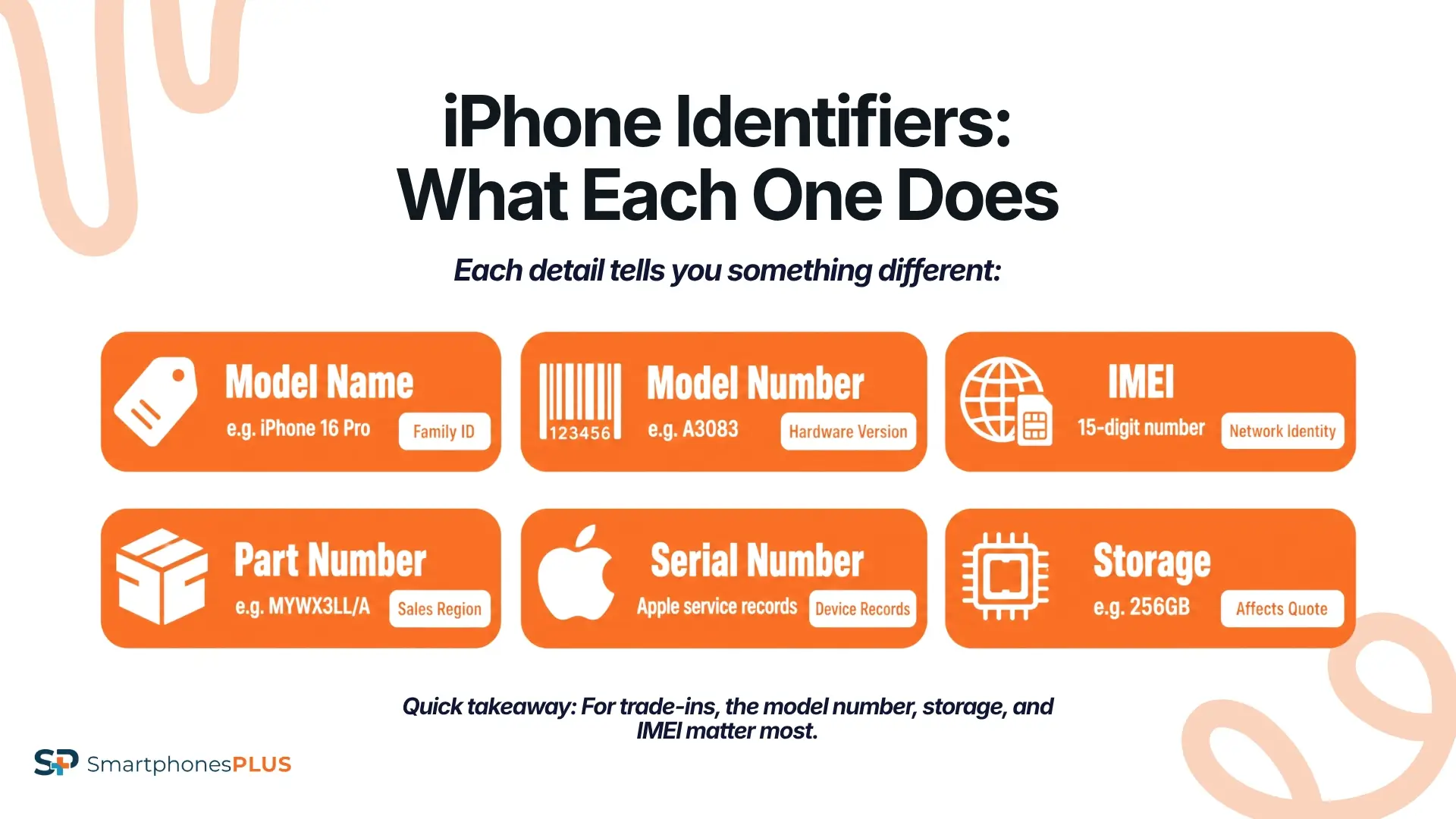
The fastest way to identify your iPhone is through Settings. The About screen shows the model name, model number, storage, serial number, and IMEI in one place.
Here is what each detail helps confirm.
| Example | What It Helps Confirm | |
| Model Name | iPhone 16 Pro | The general iPhone family |
| Model Number | A3083 | The exact hardware version |
| Part Number | MYWX3LL/A | Sales region or configuration |
| IMEI | 15-digit number | Cellular identity and carrier checks |
| Serial Number | Apple serial | Service and device records |
| Storage | 256GB | Quote, listing, and buyer comparison |
Apple keeps an official Identify your iPhone model page that lets you match an A-number to the correct iPhone. That is useful when two devices look similar, such as an iPhone 16 and iPhone 16e.
Why Your iPhone Model Number Matters
A model number can affect practical decisions beyond the device name. It can help with carrier compatibility, international use, repair questions, refurbished buying, and resale accuracy.
Some iPhones in the same generation have different versions for different markets. Older models, including the iPhone X, had multiple A-numbers because cellular compatibility could vary by carrier and region. Newer models can also differ by market, especially where physical SIM and eSIM support vary.
Model details matter for buyers too. A customer comparing an iPhone 17 Pro Max, iPhone Air, iPhone 15 Plus, or iPhone 12 mini wants the listing to match the device they receive.
How to Find Your iPhone Model Number in Settings
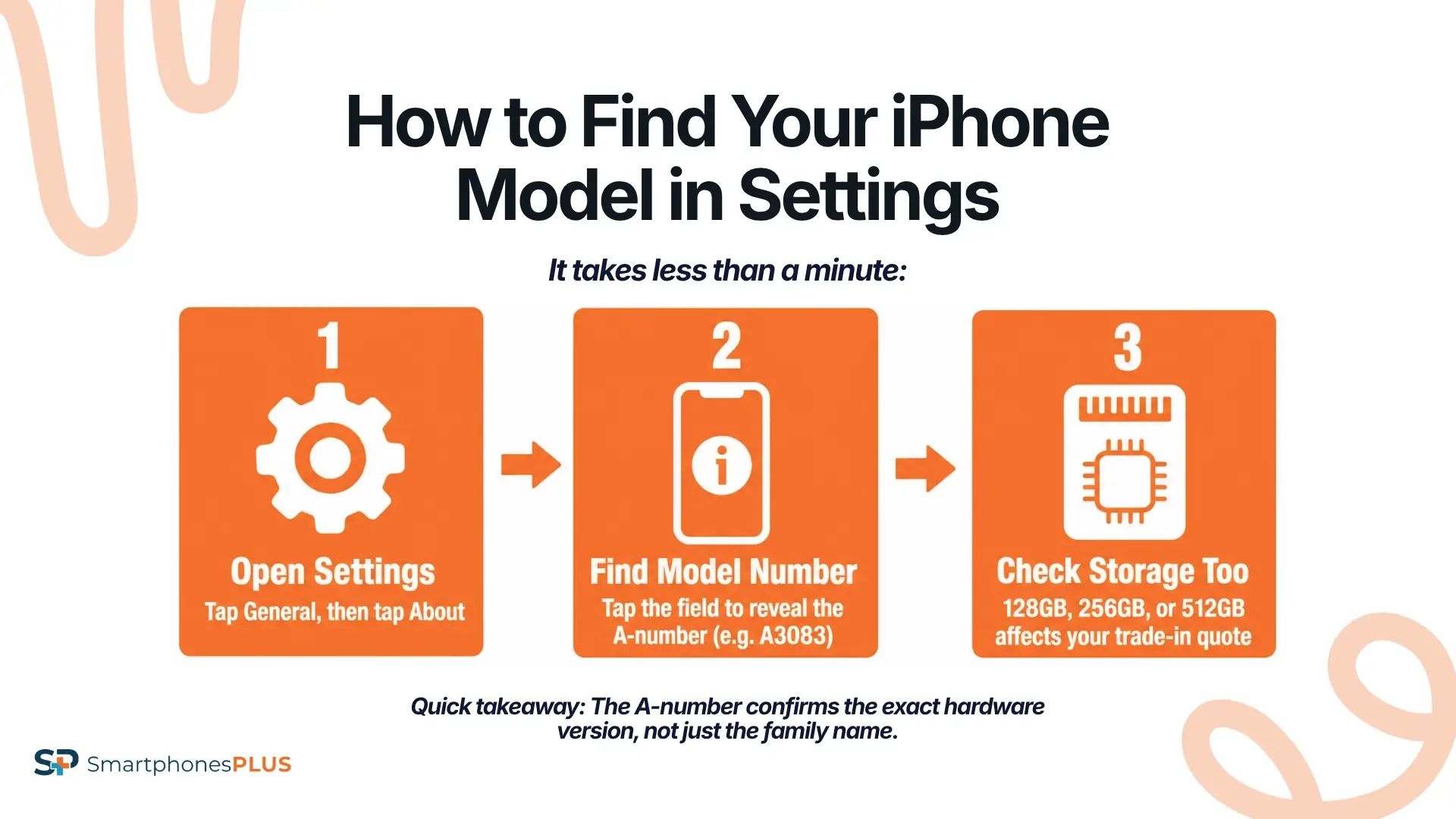
Finding the model number is easiest when the phone powers on and you can access Settings.
Open Settings and Go to About
Unlock your iPhone and open Settings. Tap General, then tap About. This screen shows the most useful device details in one place.
You should see the Model Name near the top. This may say something like iPhone 17, iPhone 16 Pro, iPhone 14 Pro Max, or iPhone SE 3rd Gen. That gives you the family name, but the model number gives a more specific hardware ID.
Tap the Model Number
On the About screen, look for Model Number. At first, your iPhone may show a longer part number with letters and numbers. Tap that field once, and it should change to an A-number.
That A-number is the detail many sellers, buyers, carriers, and repair shops use to identify the exact version. It is also the number Apple uses on its official model identification pages.
Check Storage Before You Leave Settings
Storage is easy to miss, but it can change the trade-in or resale amount. An iPhone 15 with 128GB should not be selected the same way as an iPhone 15 with 256GB or 512GB.
The About screen may show carrier lock status, iOS version, serial number, and IMEI too.
How to Find the Model Number if the iPhone Does Not Work
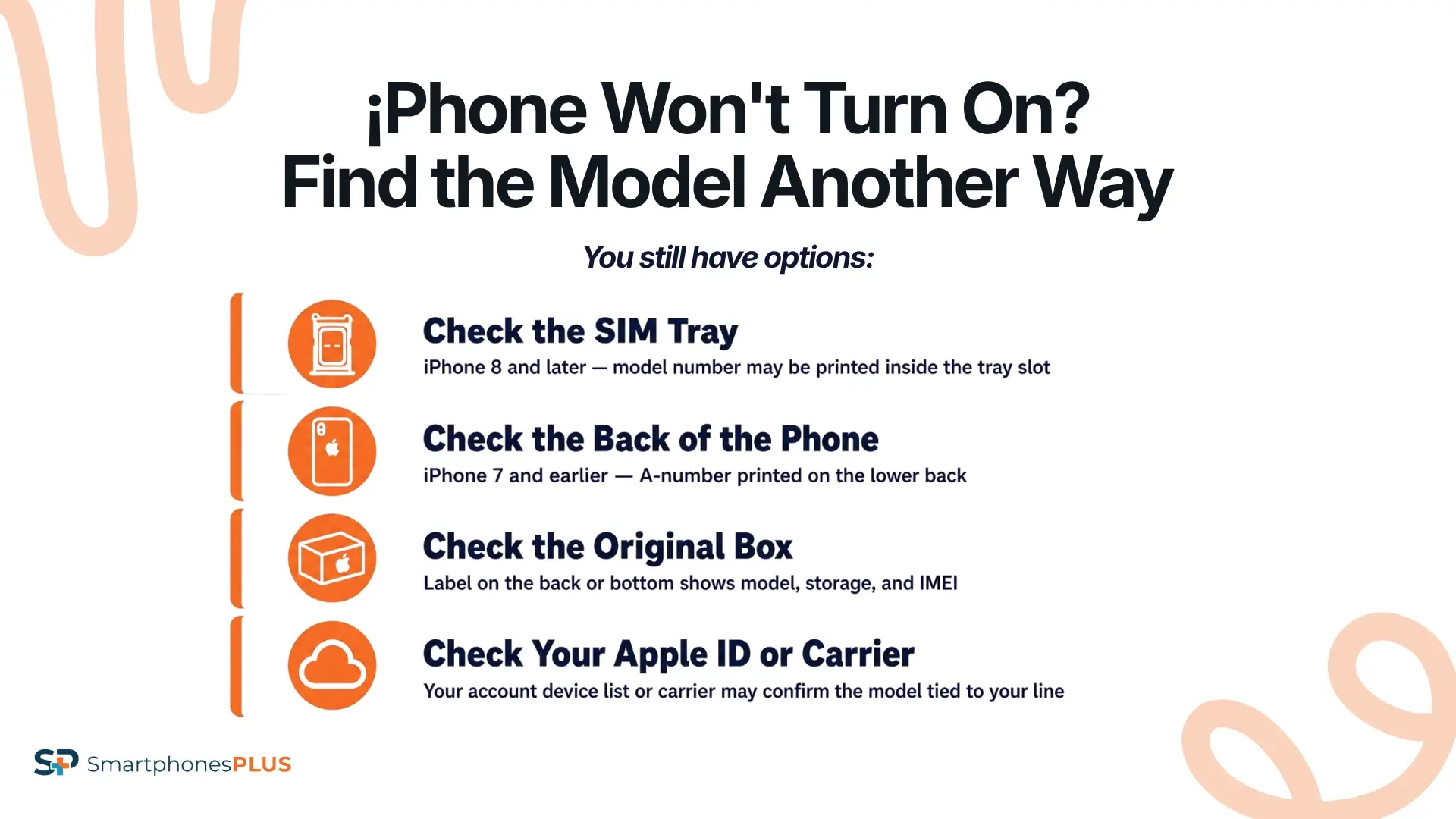
A dead screen, broken display, or phone that will not power on makes the process harder, but you still have options.
Check the SIM Tray on Many Models
For iPhone 8 and later models with a physical SIM tray, the model number may be printed inside the SIM tray slot. Remove the tray and look closely. The text is small, so good lighting helps.
Look at the Back of Older iPhones
On iPhone 7 and earlier models, the A-number may be printed on the lower back of the device. This is helpful when an older iPhone will not power on.
Check carefully because scratches or wear can make the number harder to read.
Use the Original Box
The original box can be helpful if you still have it and are confident it matches the phone. Look for the label on the back or bottom of the box. It may show the model number, serial number, IMEI, storage, and color.
The phone itself should still match the box, since old boxes can be easy to mix up after upgrades.
Check Your Carrier or Apple Account
Your carrier may be able to confirm the device model tied to your line. Your Apple ID device list may show useful information too if the phone is still linked to your account.
Apple’s support page on how to find the serial number or IMEI can help if you need another way to identify the device.
Model Name, Model Number, IMEI, and Serial Number
These details are related, but they do different jobs.
The model name is the customer-facing name, such as iPhone 17 Pro or iPhone 13. The model number identifies a specific hardware version. The IMEI identifies the individual device on cellular networks. The serial number connects the device to Apple service and support records.
The part number is different again. It can point to sales region, storage, color, or configuration, depending on the device. In Settings, you may see the part number before you tap to reveal the A-number.
That is why identifying an iPhone properly often means checking more than one field.
Why the Right Model Can Affect Trade-In Value
Trade-in value depends on more than whether the phone turns on. The exact model, storage, condition, carrier status, battery health, account locks, and market demand can all play a role.
Choosing the wrong model can lead to a revised offer. For example, selecting an iPhone 16 Pro Max when the phone is an iPhone 16 Pro, or choosing the wrong storage size, can change the quote. A locked phone may also be valued differently than an unlocked one, depending on carrier status.
Getting the model right upfront helps the process move more smoothly. At SmartphonesPLUS, if the device matches the quote details during inspection, payment can move forward. If something is different, the offer may need to be updated.
Why Model Details Matter When Buying Refurbished
Refurbished shopping is easier when the device details are clear. You want to know that the iPhone you choose matches the network, storage, size, and features you expect.
A refurbished iPhone can be a smart way to upgrade without paying full new-device pricing. Shoppers may compare newer models such as iPhone 17e, iPhone 17 Pro, iPhone 16 Plus, or iPhone Air against older choices such as iPhone 14, iPhone 12 Pro, iPhone XS Max, or iPhone 8 Plus.
A-number details are not always needed for everyday shopping, but they can help if you care about regional compatibility or need to match a specific device version. Clear model details make buying and selling easier on both sides.
Common Mistakes When Checking an iPhone Model
One common mistake is stopping at the model name. If your screen says iPhone 14, that tells you the family but not every version detail.
Another mistake is confusing the part number with the model number. In Settings, the Model Number field may show the part number first. Tap it to reveal the A-number.
Sellers also sometimes forget storage. Storage can change the quote, especially on newer iPhones. Color usually matters less than storage and condition, but it can still be part of a complete listing.
Account locks can create bigger problems than a wrong color or missing box. Before selling, sign out of Apple ID, turn off Find My, remove the device from your account, and reset it after backing up your data.
Check Your iPhone Model Before You Sell or Upgrade
The easiest time to check your iPhone model is before you need it. Do it before you switch carriers, travel internationally, buy a refurbished replacement, or request a trade-in quote.
A few minutes in Settings can help you choose the right listing and avoid quote surprises. If the phone does not work, the box, SIM tray, carrier account, Apple ID, or IMEI can give you another way to identify it.
If you are wondering which iPhone model you have because you are ready to upgrade, your current phone may still have cash value. Get an instant quote from SmartphonesPLUS today.
iPhone Model Numbers FAQs
Which iPhone model do I have if my phone still works?
Open Settings, tap General, then tap About. Look for Model Name and Model Number. Tap Model Number to reveal the A-number if it is not already showing.
Where is the iPhone model number printed?
On iPhone 7 and earlier, the model number may be printed on the lower back of the phone. On many iPhone 8 and later models with a SIM tray, it may be printed inside the SIM tray slot.
Is the model number the same as the IMEI?
No. The model number identifies the hardware version of the iPhone. The IMEI identifies the individual device on cellular networks and can help with carrier, blacklist, and activation checks.
Does my iPhone model number affect trade-in value?
It can. The model number helps confirm the exact version, while storage, condition, carrier status, battery health, and account locks also affect the quote.
Can I sell an iPhone if I do not know the model number?
You can usually still start by checking the model name and storage in Settings. If the phone does not work, the box, SIM tray, carrier account, or IMEI may help identify it.


