

Back Up Phone Before Selling With 9 Easy-to-Miss Checks
Your phone says the backup is finished, so you erase it and pack it up for shipping. Then you try to sign in to your bank on the replacement phone. The password made it over, but the code from your authenticator app didn’t. A few minutes later, you remember the voice recording that lived inside one app and the transit card you forgot to move.
Knowing how to back up your phone before selling means looking past photos and contacts. A cloud backup can save a lot, but some apps, digital keys, login tools, and local files need their own transfer steps. A recent backup time doesn’t prove that everything you care about made the trip.
This guide covers nine easy-to-miss checks, the main iPhone and Android backup methods, and a quick test to run before erasing anything. Once your data and logins work elsewhere, you can reset the old phone without wondering what you left behind.
What Does Backing Up a Phone Mean?
Backing up a phone means saving the data and account access you want to keep before removing your accounts and erasing the device.
A backup, cloud sync, and direct transfer overlap, but they don’t save the same things. A backup creates a stored copy for a new device. Cloud syncing keeps selected information, such as contacts or photos, updated across signed-in devices. A direct transfer moves compatible content between the old and new phones.
You may use all three when you back up your phone before selling. Authenticator codes, secure folders, downloads, Wallet items, and data saved inside an app may still need attention. The backup is ready once your files and logins work elsewhere.
What Should You Save Before a Reset?
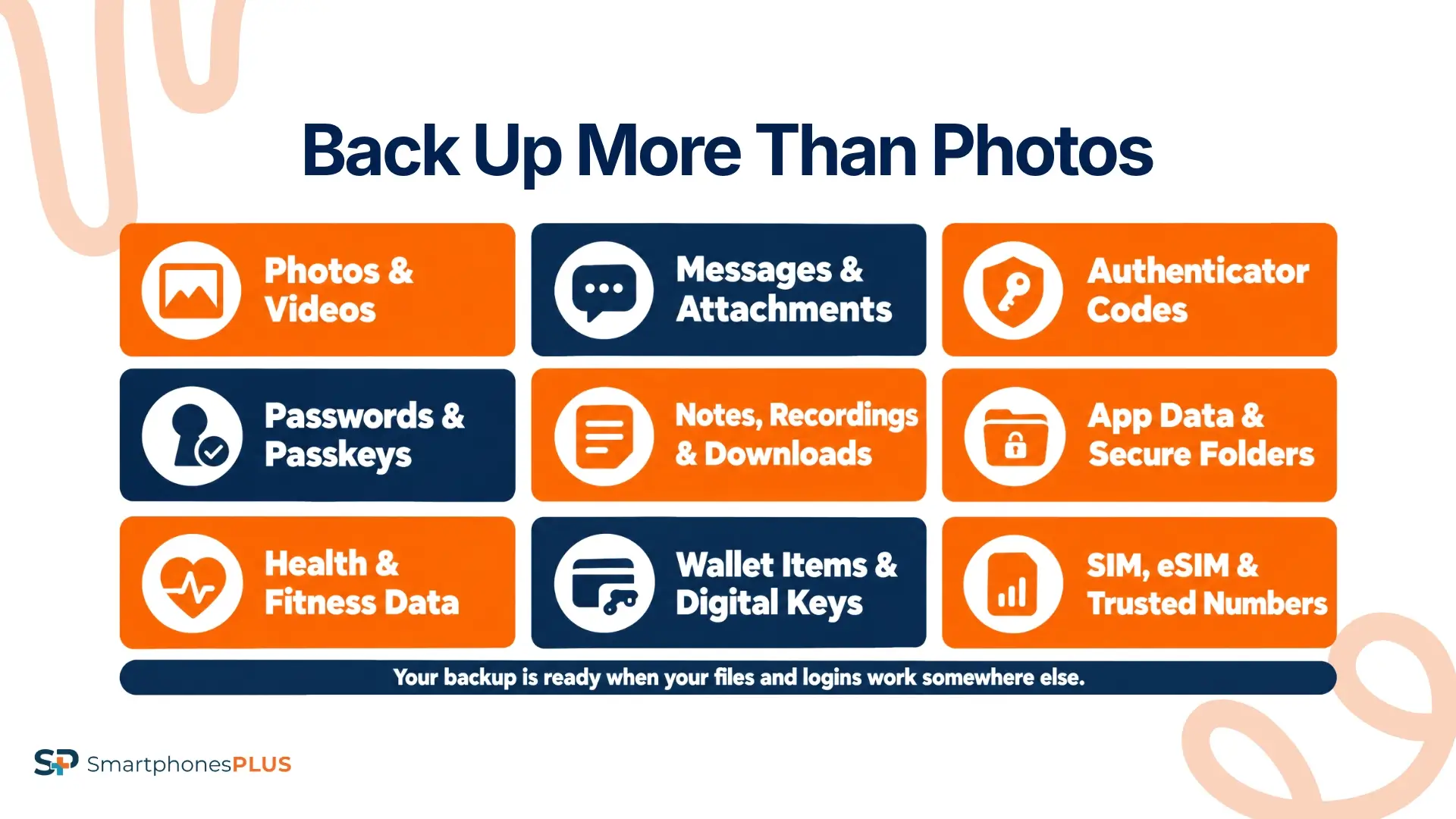
Save or move any data, credentials, and account access that would be hard to replace after the phone is erased. The table below covers nine places worth checking before the reset.
| What to check | What can be missed | Ready to reset when |
| 1. Recent photos and videos | New media or folders outside the camera roll may not have synced | Recent files open elsewhere |
| 2. Messages and attachments | Important files may exist only inside a conversation | Key threads and attachments are preserved |
| 3. Authenticator codes | Some apps require a separate transfer or recovery codes | Codes work on the replacement device |
| 4. Passwords and passkeys | Credentials may depend on a certain password manager | Logins work on another device |
| 5. Notes, recordings, and downloads | Locally stored files may not sync automatically | Important files have been copied and opened |
| 6. App data and secure folders | Apps may rely on separate backup or export tools | Critical app data has been checked |
| 7. Health and fitness data | Records may rely on platform syncing or encryption | Recent records appear elsewhere |
| 8. Wallet items and digital keys | Cards, passes, and keys may need a separate transfer | Every item has been transferred or accounted for |
| 9. SIM, eSIM, and trusted numbers | Losing phone service can affect account access | Calls, texts, and verification methods work elsewhere |
Recent Files and Message Attachments
Don’t stop at the camera roll. Check recent videos, scanned documents, voice recordings, downloads, and message attachments. Look inside individual apps too because a work recording may never appear in the main Files folder. Test a few irreplaceable files on another device instead of trusting a thumbnail.
Passkeys and Authenticator Apps
Try one important login through your password manager on the replacement device. Google Authenticator can sync codes through a Google Account, or you can follow Google’s Authenticator transfer instructions. Other apps may need a QR code or recovery codes instead. Test one code before erasing the old phone.
Apps, Health Data, and Wallet Items
Open the apps that hold work files, creative projects, game saves, health records, or secure folders. Their backup, sync, or export settings will tell you what moves. Health data may need cloud syncing or an encrypted computer backup. Cards, transit passes, tickets, and digital keys might have to be moved, removed, or re-added separately.
SIM, eSIM, and Account Access
Phone service doesn’t move with a standard backup. Transfer or reactivate the SIM or eSIM, then make a call, receive a text, and try mobile data on the new device. Apple’s eSIM guidance covers transferring your plan between nearby iPhones through participating carriers.
If your number is changing, update it on important accounts first.
How to Back Up Phone Before Selling
To back up your phone before selling, start with its main backup method and let it finish. Then handle any apps or accounts it doesn’t cover. Menu names can vary by software version and manufacturer.
Back Up an iPhone With iCloud
Open Settings, tap [your name], choose iCloud, then open iCloud Backup and tap Back Up Now. Apple’s iPhone backup instructions say automatic backups run when the phone is locked, charging, and connected to Wi-Fi. Some carriers allow cellular backups.
If you need to back up your iPhone before trade-in, don’t stop once iCloud shows a recent backup. Open synced content such as Photos, Messages, Notes, Contacts, and iCloud Drive on another device.
Back Up an iPhone to a Computer
Connect the iPhone, select it in Finder on a current Mac, or open the Apple Devices app on Windows. Older systems may still use iTunes. Choose the backup option and let the process finish.
Choose an encrypted local backup if you want to include saved passwords, Health data, and Apple Watch Activity data. Apple’s computer backup instructions warn that you cannot recover an encrypted backup without its password. Store it somewhere safe and look for the latest backup date when the process ends.
Back Up Android Through Google
On many Android phones, open Settings, choose Google, tap All services, then open Backup and restore and Backup. Make sure the right Google Account appears, review the categories, and tap Back up now. These labels shift between versions, so use Google’s Android backup instructions if your screen looks different.
Check Google Photos separately for your newest images. Google notes that some apps can’t back up or restore all their settings and data. When you need to save data before selling phone hardware, use the transfer or export tools inside apps that hold important files. This helps you back up your phone before selling without relying on one Google backup for everything.
Add Samsung Tools for a Galaxy
Galaxy owners have two more options. Samsung Cloud can save compatible call logs, messages, settings, and other data. Open Settings, tap your Samsung account name, choose Samsung Cloud, then select Back up data.
Samsung Smart Switch can move supported content to another Galaxy or save a copy to a computer, microSD card, or USB storage. Supported items vary, so keep the app-specific checks in your plan.
How Can You Verify the Backup Worked?
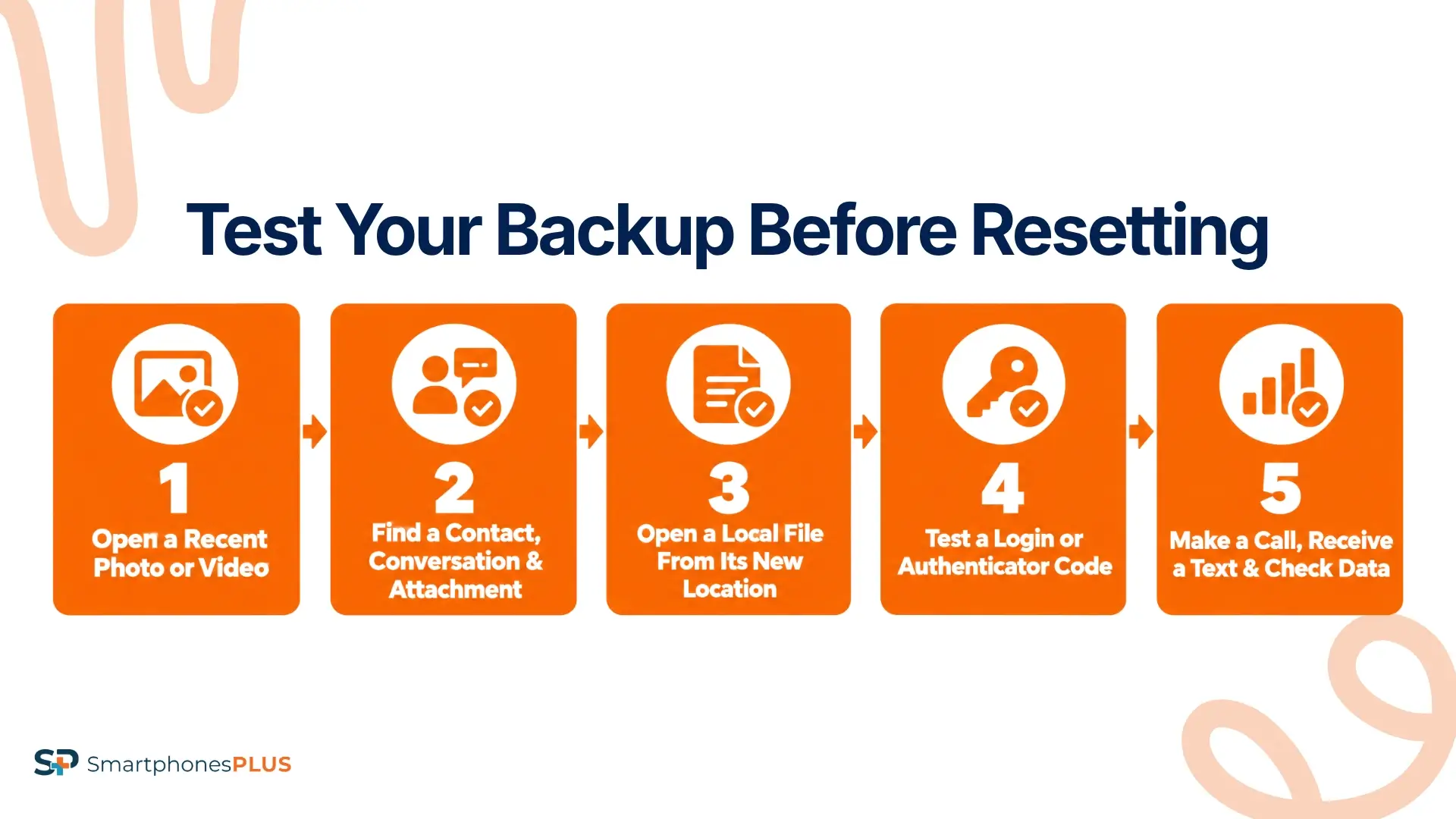
After you back up your phone before selling, test the result somewhere other than the old device. A completed progress bar doesn’t prove that every file, login, or digital key transferred correctly.
Test the Backup Before Resetting
Run these five checks on the replacement device, computer, cloud account, or external storage:
- Open a recent photo or video.
- Find a recent contact, conversation, and important attachment.
- Open one local document, note, or recording from its new location.
- Sign in to an important account and test the password manager or authenticator code.
- Make a call, receive a text, and check mobile data on the replacement device.
Hold off on the reset until every relevant check passes. If something is missing, return to the app that created it and try its transfer, sync, or export option.
What Should You Do After Backing Up?
Once the data works elsewhere, move your phone service, remove accounts and device locks, reset the phone, and wait for the setup screen.
Remove Accounts and Device Locks
On an iPhone, unpair an Apple Watch, sign out of your Apple Account, and turn off Find My so Activation Lock does not remain. Check Parts and Service History for a Finish Repair message too. Sign-out choices differ between iOS 26 and earlier versions, so follow Apple’s current sale-preparation steps.
On Android, remove the Google Account and manufacturer account before resetting. That stops Factory Reset Protection from asking the next owner for your credentials. SmartphonesPLUS has guidance for removing iCloud, Google, and Samsung accounts.
Reset and Check the Old Phone
After the reset, stop at the welcome screen and don’t sign back in. Remove any physical SIM or removable storage you plan to keep. Taking the accounts off first helps prevent the next owner from being asked for your credentials.
The Federal Trade Commission also recommends backing up, removing the SIM and microSD card, and erasing personal information before selling a phone. Once that’s done, confirm the model, storage, carrier, and condition for the quote.
What Could Your Backed-Up Phone Be Worth?
Backing up the phone doesn’t change its trade-in value. The examples below show current SmartphonesPLUS offers for unlocked 128GB phones in Good condition.
| Device | Configuration | Current live offer |
| iPhone 16 | Unlocked, 128GB, Good | $380 |
| iPhone 13 | Unlocked, 128GB, Good | $130 |
| Samsung Galaxy S24 | Unlocked, 128GB, Good | $184 |
Your offer will reflect the storage, carrier, and condition you choose. The final payment can change if the phone’s condition does not match the description provided.
Keep Your Data and Sell the Phone
A completed backup screen is only the beginning. Check your important files, logins, authenticator codes, digital keys, and phone service somewhere else before erasing the old device.
After you back up your phone before selling and reach the welcome screen, you can check its current trade-in value. Enter the model, storage, carrier, and condition, then decide if you’re ready to send it in.
When you’re ready, check your phone’s current trade-in value and decide if selling it makes sense for you.
FAQs
How long does a phone backup take?
Backup time varies with data size, connection speed, method, and available storage. A large first backup can take hours. Google says an Android backup may take up to 24 hours, so don’t leave it until shipping day.
Can you back up without Wi-Fi?
Yes. A computer or compatible external drive gives you an offline option. Some phones support cloud backups over cellular, based on the phone, carrier, settings, and data plan. Check your data allowance before a large upload.
Does a reset delete cloud backups?
No. A factory reset erases the data stored on the phone, but it doesn’t delete an existing iCloud, Google, or computer backup. Confirm that the backup is complete before resetting the device.
Can you back up a broken phone?
Sometimes. Cloud syncing may have saved recent information, and a trusted computer may help if the phone still turns on and unlocks. A damaged screen, storage drive, or security component can limit your options, so a complete backup is not guaranteed.
Should you keep two backup copies?
Yes, for anything you could never replace. Keep one copy in the cloud and another on a computer or external drive. Open a few photos, recordings, documents, or files from both locations before erasing the phone.


