
Even if your iPhone looks brand new on the outside, its lithium-ion battery on the inside is gradually losing capacity with every charge cycle. You probably won’t notice anything at first. But over time, battery degradation is what leads to shorter battery life, slower performance, and lower resale values when it comes time to sell or trade in your device.
Fortunately, Apple gives you a simple way to monitor your battery health before it becomes a problem. And in this article, we’re breaking down everything you need to know about how to check battery health on your iPhone, the science behind the used phone industry’s “80% Rule,” and how battery degradation affects the resale value of your phone.
The Science of Lithium-Ion Degradation
Before we get to the specifics of how to check battery health on your iPhone, it helps to understand what’s actually going on inside your phone.
Like every rechargeable smartphone battery, your iPhone runs on lithium-ion technology, and while it is designed to last, no battery stays at peak performance forever. Every charge, every app session, and every overnight plug-in slowly contributes to the natural aging process.
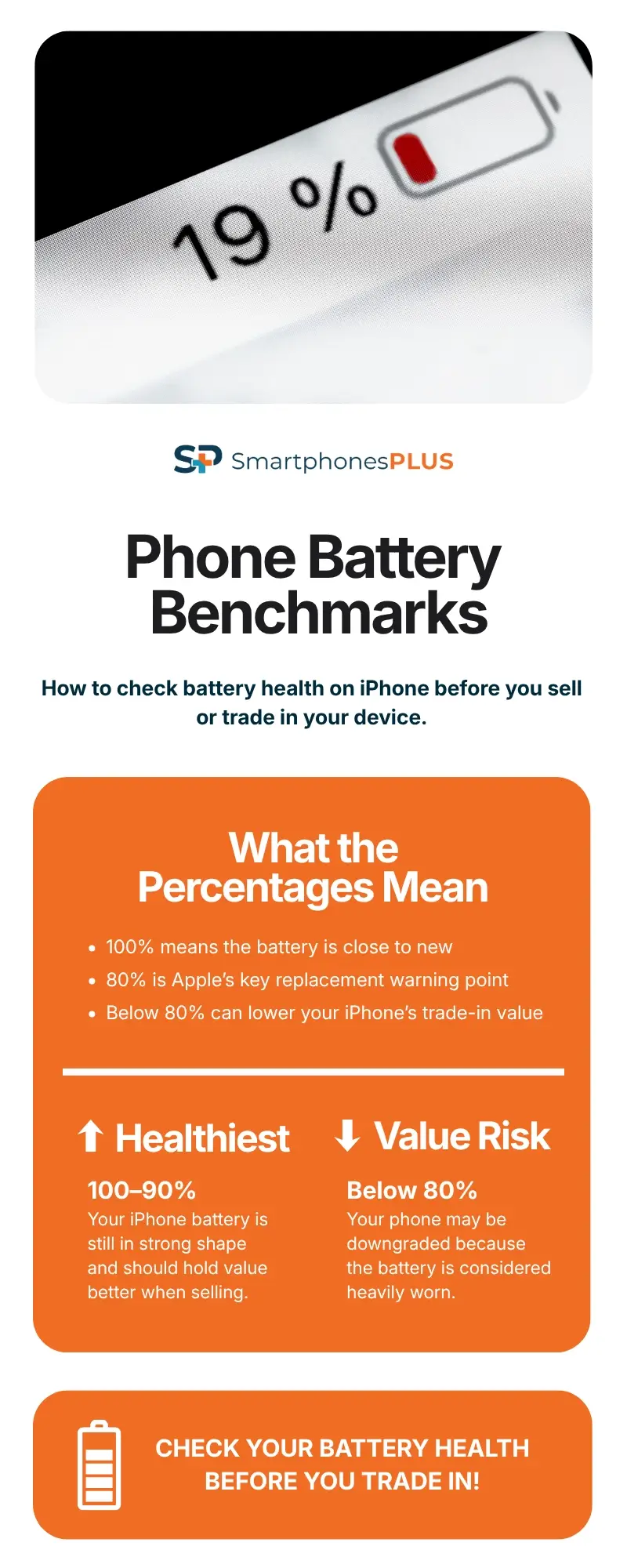
Here’s a quick look at the key battery benchmarks Apple uses to measure your iPhone’s health.
Charge Cycles Explained
Apple measures your iPhone battery’s lifespan using something called “charge cycles.” In simple terms, one charge cycle equals using up 100% of your battery’s total capacity, but that doesn’t mean draining your phone from 100% to 0% in a single day.
Think of it like this: if you use around 75% of your battery today, plug it in overnight, and then use another 25% tomorrow, you’ve officially completed one full charge cycle.
It’s essentially Apple’s way of tracking wear and tear on your battery over time. The more charge cycles your iPhone goes through, the more the battery naturally ages, meaning it gradually holds less charge than it did when it was brand new.
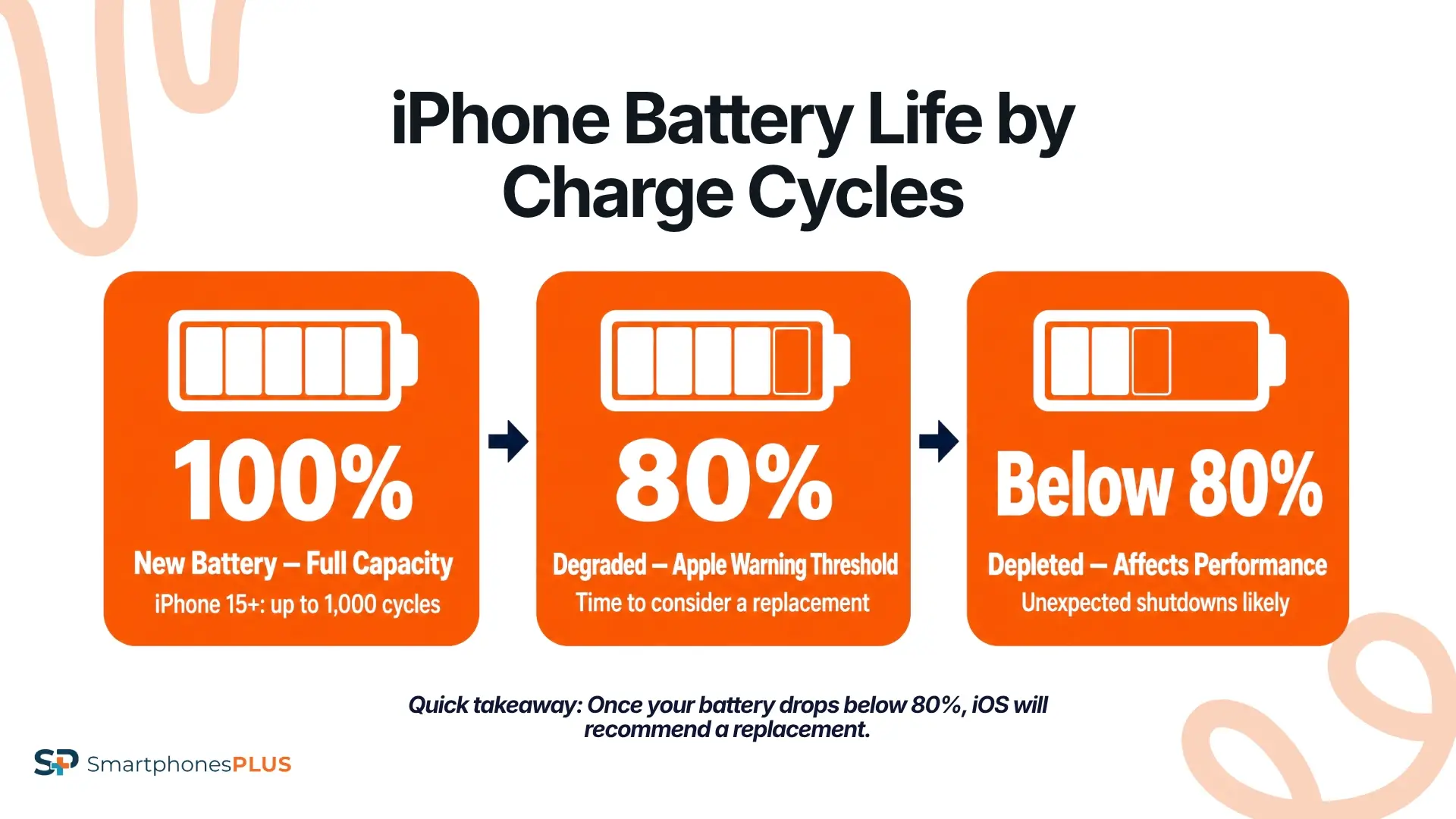
According to Apple’s official documentation, iPhone 14 models and earlier are designed to retain up to 80% of their original battery capacity after 500 complete charge cycles under ideal conditions. Newer iPhone 15 models and later are built to last even longer, retaining up to 80% capacity after 1,000 charge cycles under ideal conditions.
That’s a pretty significant jump in expected battery lifespan, and one of the reasons battery health can vary so much depending on which iPhone you own. Of course, “ideal conditions” is the key phrase here. Heavy usage, extreme temperatures, fast charging habits, and constantly running power-hungry apps can all speed up battery wear over time.
Maximum Capacity vs. Peak Performance
When you check your battery health on your iPhone, you are looking at two distinct metrics:
- Maximum Capacity: This measures the current battery capacity relative to when it was new. A lower capacity means fewer hours of usage between charges.
- Peak Performance Capability: As batteries age chemically, their ability to deliver sudden bursts of maximum power decreases. If the battery cannot deliver enough power during a demanding task (like opening a heavy app), the iPhone will unexpectedly shut down to protect its electronic components.
In short, maximum capacity tells you how long your battery lasts, while peak performance capability tells you how well your iPhone can keep up under pressure. Together, these metrics give you a much clearer picture of your phone’s overall health and whether it is simply aging normally or nearing the point where a battery replacement might make sense.
How to Check Battery Health on iPhone
Apple makes it incredibly simple to monitor these metrics. Here is the step-by-step process for how to check battery health on iPhone:
- Open the “Settings” app on your iPhone.
- Scroll down and tap on “Battery”.
- Tap on “Battery Health & Charging” (or just “Battery Health” on older iOS versions).
On this screen, you will see the “Maximum Capacity” percentage. If your phone is brand new, it will say 100%. If you have owned it for a year, it might say 89%.
If you own an iPhone 15 or newer, Apple provides even more granular data. On these newer models, you can go to Settings > Battery > Battery Health and see the exact “Cycle Count,” the date the battery was manufactured, and the date it was first used.
The 80% Battery Rule
In the smartphone industry, 80% is the magic number. It’s the threshold where a battery transitions from “normal degradation” to “chemically depleted.”
For iPhones, when the maximum capacity drops below 80%, iOS will display a warning message recommending a battery replacement, and at this stage, you’ll probably notice slower performance and shorter battery life.
This 80% threshold is universally recognized across the tech industry. It’s the standard used by Apple for warranty replacements (if your battery drops below 80% while under AppleCare+, they replace it for free), and it’s a critical benchmark used by buyback companies to determine trade-in value.
How Battery Health Impacts the Trade-In Value of Your iPhone
When you trade in or sell an iPhone, buyback companies typically run diagnostic software to check its condition. That includes reading your iPhone’s internal battery data, so if the battery is heavily degraded, there is really no hiding it.
The bigger question is: how much does poor battery health actually affect what your phone is worth?
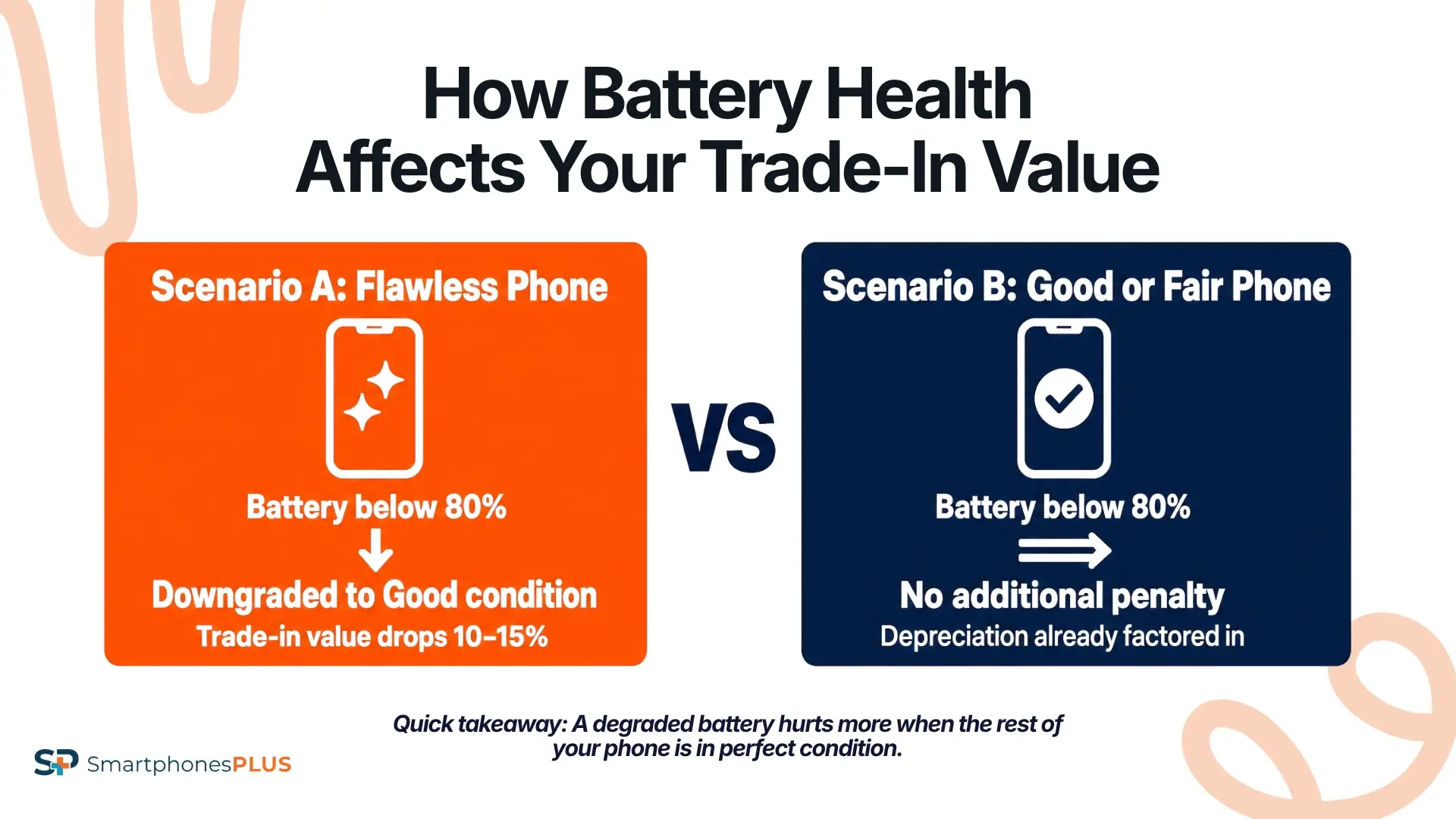
We can only speak for ourselves, but at SmartphonesPLUS, the answer depends largely on the overall condition of the device. A battery below 80% doesn’t automatically tank your trade-in value, but whether it hurts your payout depends on how the rest of your phone looks and functions. A flawless iPhone with a weak battery may take a bigger hit than one that already has scratches or normal wear and tear.
Here’s a quick look at two scenarios.
Scenario A: The Flawless Phone
If your iPhone is in flawless condition (no scratches, dents, or screen damage) but the battery health falls below 80%, it can no longer qualify for a top-tier “Flawless” grade.
Instead, the device is typically downgraded to “Good” condition, which can reduce its trade-in value by around 10 to 15%. In other words, even if your phone looks perfect on the outside, battery health can still take a noticeable bite out of your payout.
Scenario B: The Good or Fair Phone
If your iPhone already has normal wear and tear and falls into the “Good” or “Fair” category, a battery below 80% usually doesn’t trigger an additional penalty.
This is because the depreciation has already been factored into the condition grade. That means no further downgrade and, in most cases, no extra hit to your trade-in value.
Should You Replace an iPhone Battery Before Selling?
A question we get all the time is whether it makes financial sense to pay for a battery replacement before trading in the phone.
In almost all cases, the answer is no.
An official Apple battery replacement can cost anywhere from $89 to $100+, depending on the model. And, as we outlined above, a degraded battery only drops the trade-in value by 10% to 15% on a flawless phone.
For argument’s sake, let’s say your iPhone 13 Pro Max is worth $400 in flawless condition. If a battery health below 80% drops the offer to $350, that’s a $50 difference. Spending $89 on a battery replacement to recover $50 doesn’t make much sense.
For most people, the smarter move is to sell the phone as-is. Professional buyback companies already expect to replace batteries during refurbishment and can do it at a much lower cost than consumers can. And unless replacing the battery clearly increases your payout more than the repair itself costs, you are usually better off keeping the money in your pocket.
Get More Life (and More Value) Out of Your Next iPhone
Once you’ve finally sold your old iPhone and upgraded to something new, it’s important to be mindful of your iPhone’s battery health from day one.
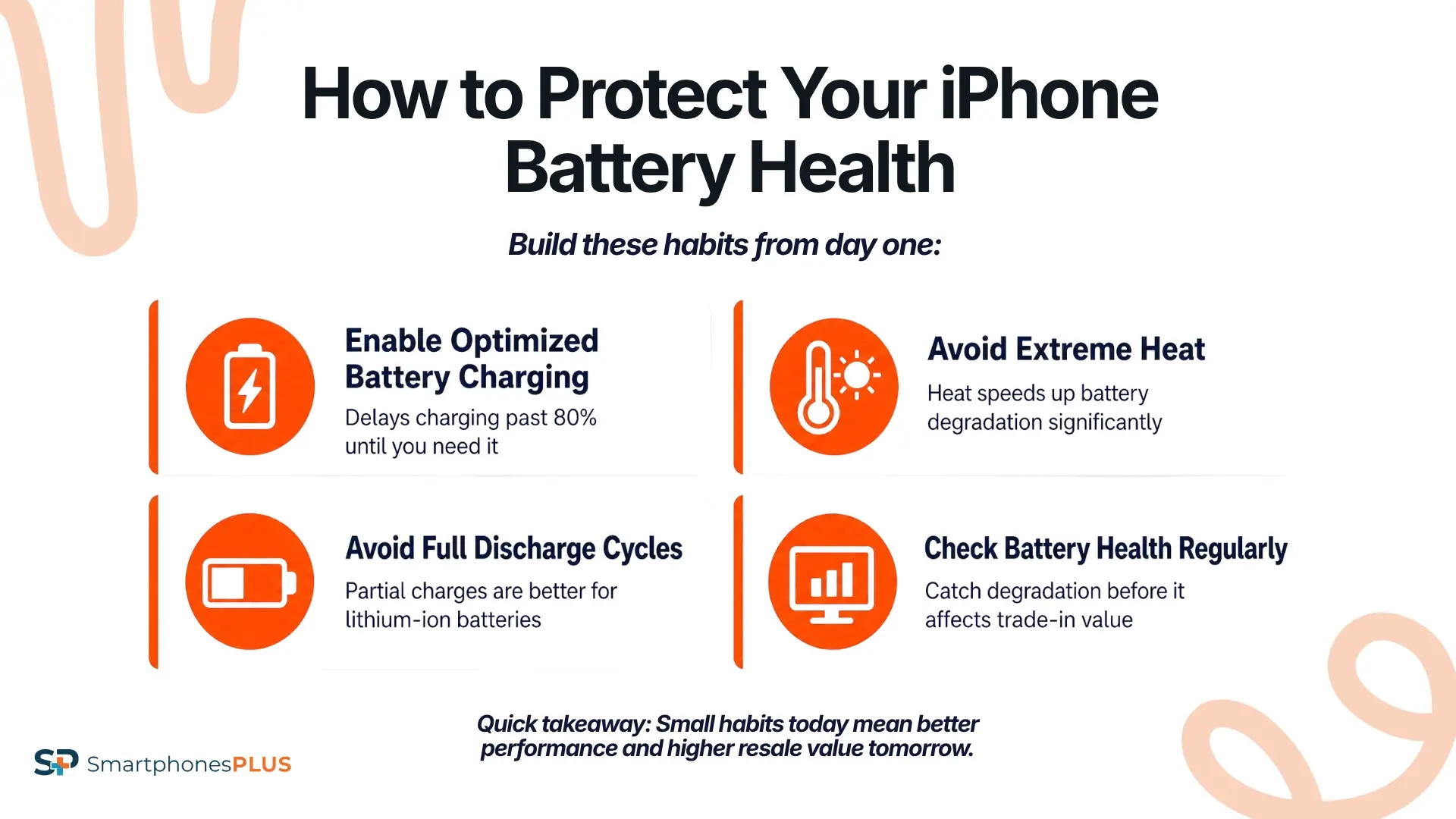
One of the easiest things you can do is turn on “Optimized Battery Charging” in your settings. This feature learns your daily charging habits and delays charging past 80% until you actually need your phone, helping reduce long-term battery wear.
It’s also worth avoiding extreme heat whenever possible. Lithium-ion batteries don’t really handle high temperatures well, and regularly leaving your phone in a hot car, direct sunlight, or overheating it during charging can speed up battery degradation much faster than normal.
At the end of the day, battery aging is inevitable, but getting ahead of it isn’t necessarily rocket science. By checking your iPhone’s battery health regularly and building a few battery-friendly habits, you can keep your device running better for longer and put yourself in the best position possible to get the most cash back when it’s finally time to upgrade.
FAQs About How to Check Battery Health on iPhone
Can a software update fix my battery health percentage?
No. The battery health percentage reflects physical and chemical degradation inside the battery cell. A software update cannot reverse chemical aging. Occasionally, an update might recalibrate how the software reads the sensor, causing the number to adjust slightly, but it doesn’t fix the physical battery.
Is it bad to leave my iPhone plugged in overnight?
No, it’s not bad if you have “Optimized Battery Charging” enabled. Modern iPhones are smart enough to stop drawing power when they reach 100%. The optimized charging feature further protects the battery by holding the charge at 80% for most of the night and finishing the final 20% just before you wake up.
Why did my battery health drop 3% in one month?
Battery health doesn’t always drop linearly. It’s common for the percentage to stay at 100% for six months, and then drop to 96% over the next two months. This is normal behavior for lithium-ion batteries and the software that estimates their capacity.
Will a third-party battery show battery health data?
If you replace your battery at a repair shop, newer iPhones will display an “Unknown Part” warning even if the battery is a genuine part. This could also cause the Battery Health percentage to no longer be visible in settings. This could lower your trade-in value.


